
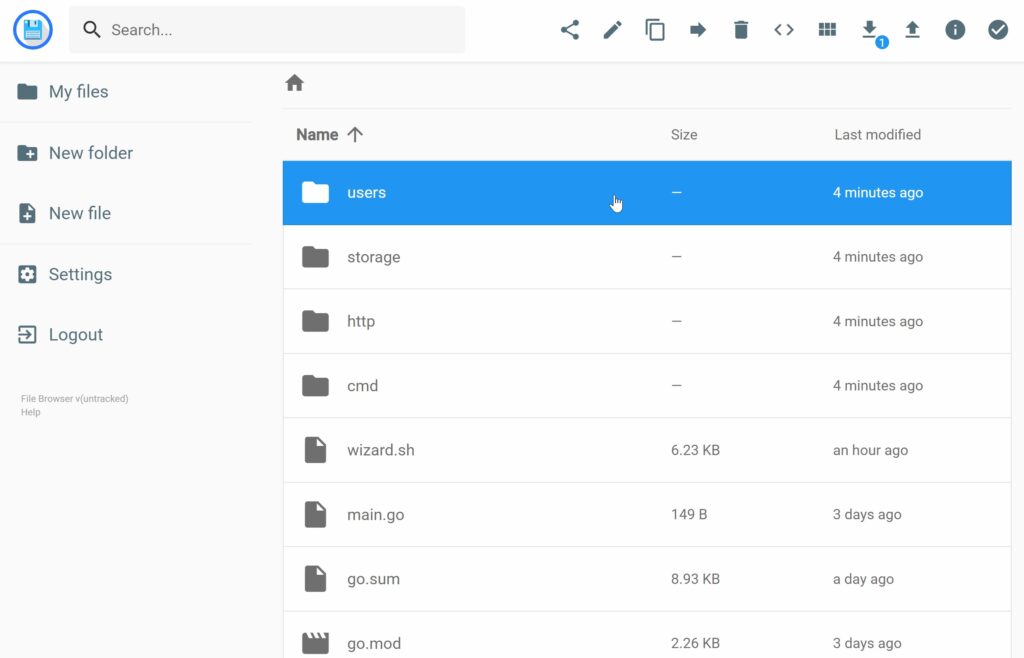
Not every server setup needs a full-blown cloud suite like Nextcloud. Sometimes the requirement is much simpler: a web panel that lets you upload, delete, preview, rename, or edit files inside a specific directory, with separate users and without turning permissions into a weekend project. That’s where Filebrowser fits in — a lightweight tool that has become a popular choice among people running home NAS boxes, small servers, and self-hosted environments, especially thanks to how easily it runs in a container.
One of the quickest ways to deploy it is via the Docker image maintained by hurlenko, which wraps Filebrowser in a container-friendly setup with clear volumes and environment-variable configuration. The end result is a service you can bring online fast and place behind a reverse proxy (like Nginx) to integrate into a larger stack.
What it does — and why it’s become so popular
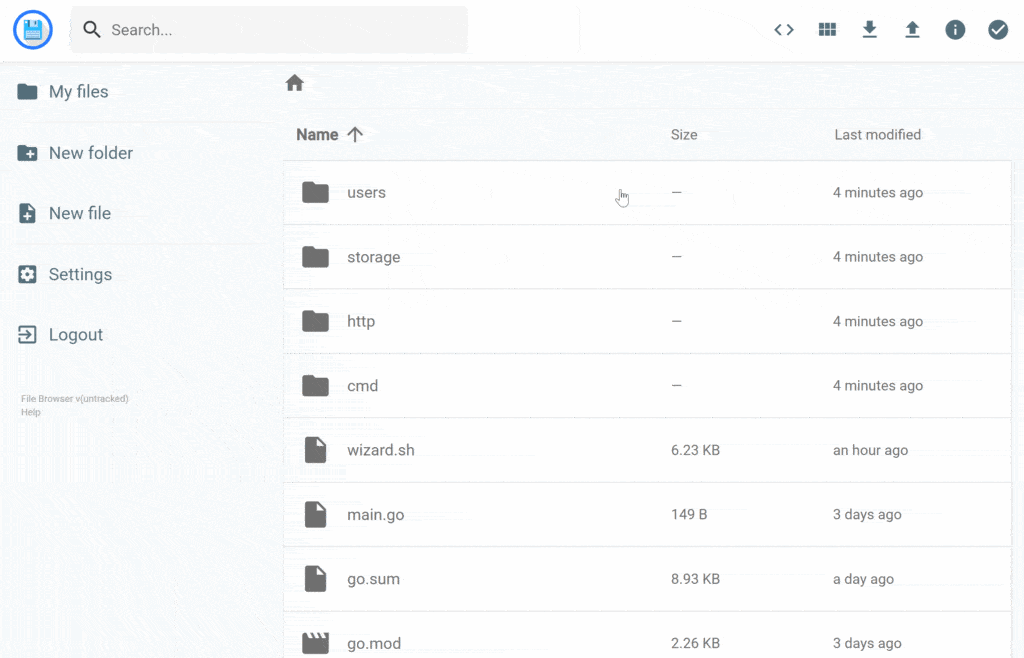
Filebrowser describes itself as a web interface for managing files within a specified directory. It supports the basics you’d expect (upload, remove, preview, rename, edit) and adds something that matters when a system is shared: multi-user support, where each user can have their own directory. It can run as a standalone app or act as middleware, depending on what you’re building.
Its appeal is the balance: it doesn’t try to be a full “Drive” replacement or a heavyweight document platform. It focuses on one job: manage files over the web, without exposing SMB/FTP to the internet and without needing a VPN for simple tasks.
Fast start: one container and a port
The repo’s “try it now” approach is straightforward:
- Run the container.
- Publish the service port.
- Open it in a browser.
With the hurlenko container, the default internal port is 8080. From there, you decide whether to expose it directly or put it behind a proxy that handles HTTPS.
But once you move from “testing for five minutes” to “leaving it running,” the details that matter most are permissions, volumes, and URL paths.
The configuration that usually prevents headaches
The repository recommends running the container as the current host user (instead of root inside the container) and mapping two key volumes:
- /data: the directory whose contents you want to manage from the web UI.
- /config: where the database/config file lives.
This gives you two big wins: files created or uploaded keep sane ownership/permissions on the host, and configuration persists across restarts or container rebuilds.
The project also supports configuration via environment variables. The pattern is simple: variables are prefixed with FB_ followed by the option name in uppercase. A common example is FB_BASEURL, which is useful when you’re serving Filebrowser under a subpath (like /filebrowser) instead of the domain root.
Behind Nginx: the typical “multi-service server” setup
On servers hosting multiple web apps (monitoring, home automation, backups, etc.), it’s common to put Filebrowser behind a reverse proxy. The repo includes an Nginx example that covers the essentials: proxying to the container port, setting headers, increasing upload limits, and supporting WebSockets.
This approach lets you serve the UI under a path such as yourdomain.com/filebrowser and manage HTTPS centrally in one place. It also makes it easier to add extra guardrails if needed — like additional authentication, IP allowlists, or access rules for business environments.
Attaching multiple folders: a clean way to organize access
A common question is whether you can manage multiple host directories in one instance. The repo recommends mounting them as subdirectories under /data, for example:
/data/music/data/movies/data/photos
That way, Filebrowser sees a single directory tree, but it’s actually backed by multiple separate host paths. It’s a tidy way to provide structured access without spinning up multiple instances.
What to keep in mind before exposing it to the internet
Filebrowser is convenient — but it’s still a doorway into your files. If you plan to make it internet-accessible, basic security hygiene matters.
A few practical guidelines (without overcomplicating it):
- Use HTTPS (via a proxy or equivalent).
- Avoid exposing sensitive directories unless absolutely necessary.
- Stick to least privilege: if a folder should be view-only, mount it read-only when possible.
- Pay attention to who can access it and from where (and restrict by IP or add extra auth if appropriate).
In short: it’s a great tool when you want a fast, web-based file manager — but its simplicity shouldn’t be mistaken for “safe no matter how you publish it.”
Frequently asked questions
What is Filebrowser in Docker used for on a NAS or home server?
It provides a browser-based way to manage files (upload, delete, rename, preview, edit) inside a server directory, without relying on SMB/FTP and with multi-user support.
What ports and volumes does the hurlenko/filebrowser container use?
The service defaults to port 8080 inside the container. Common volumes are /data for the files and /config for the database and configuration.
How do you run Filebrowser behind Nginx under a subpath like /filebrowser?
Typically you configure Nginx as a reverse proxy to the container port and set a base URL (often via FB_BASEURL) so the app behaves correctly under that path.
Can you mount multiple server folders into one Filebrowser instance?
Yes. A common approach is mounting multiple host paths as subdirectories under /data (e.g., /data/photos, /data/music) so they appear as organized folders in a single UI.