
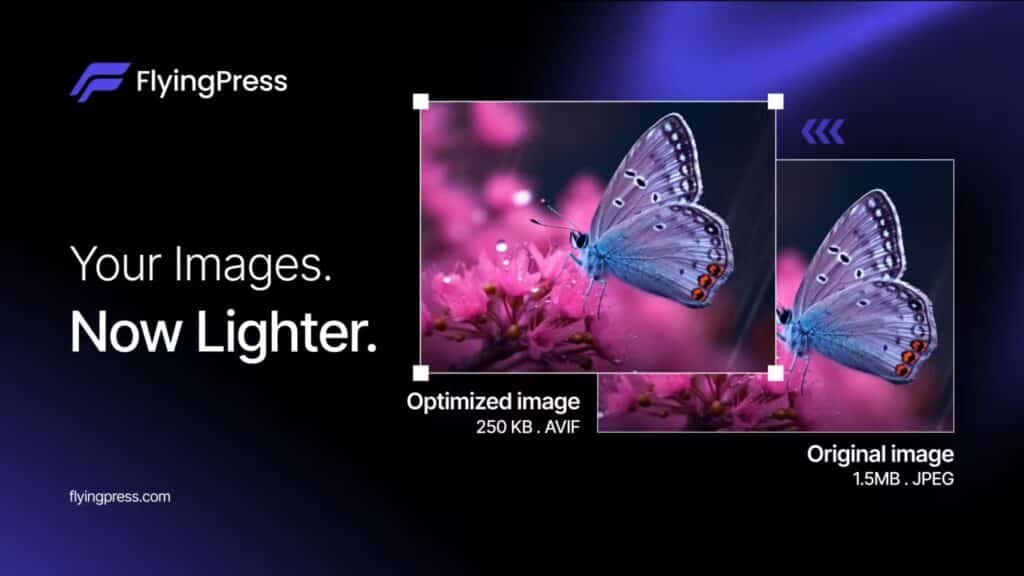
FlyingPress has earned a place among WordPress performance plugins thanks to a pragmatic approach: speeding up sites under real-world conditions, not just synthetic tests. Until now, its value proposition rested on three pillars—caching, page optimization (via a cloud optimization workflow), and Core Web Vitals analytics based on real user data—but one recurring item in almost every performance audit remained: images.
With FlyingPress 5.3, that gap is finally addressed with built-in image optimization, designed to cut weight and improve load times without adding more plugins to your performance stack. The message is straightforward: fewer moving parts, less friction, and a more coherent optimization pipeline for anyone who wants speed without maintaining a patchwork of tools.
What FlyingPress 5.3 actually adds
This is not simply “compress images.” FlyingPress introduces a system that lets you choose format, compression type, and automation level, with an important operational detail: processing happens on FlyingPress’ cloud servers, not on your site’s hosting.
In practice, the Images panel adds options that are often spread across specialized plugins:
- Output format selection: AVIF, WebP, or keep the original format (JPG/PNG).
- Compression type: lossless (no quality loss) or lossy (with quality loss, typically imperceptible in real use).
- Auto-optimization for new uploads: so every image added to the Media Library gets optimized automatically.
- Reversible control: the ability to restore originals.
- Disk savings (with a warning): the option to delete originals once you are satisfied—a permanent action.
The tool also shows before/after size metrics, with examples of very aggressive reduction (from several MB down to a fraction), reinforcing the plugin’s core focus: performance you can actually feel.
How it works under the hood: what WordPress admins should know
FlyingPress approach is fairly straightforward:
- Sends original images to FlyingPress’ cloud optimizer.
- Receives optimized versions based on your configured settings.
- Stores the optimized files in WordPress’ uploads folder (
uploads). - Rewrites URLs in content so the optimized versions are served.
A few operational nuances are worth highlighting:
- Only JPG/JPEG and PNG are optimized (not every format is included in the workflow).
- The system processes both the main file and the WordPress-generated sizes (thumbnails and derivatives).
- If auto-optimization is enabled, it applies only to new uploads, and large batches can continue processing in the background (without blocking the site).
This design targets a common pain point on limited hosting: avoiding CPU/RAM spikes during bulk conversions, which is a frequent issue when optimization runs on the server itself.
Choosing between AVIF, WebP, or “original”: a decision with real implications
Picking a format is not simply “smallest wins.” In WordPress, the decision usually depends on compatibility, hosting support, and your audience profile.
Table 1 — Quick configuration guide for FlyingPress 5.3
| Setting | Option | Main advantage | Typical trade-off | Practical recommendation |
|---|---|---|---|---|
| Format | WebP | Strong balance and broad compatibility | Less efficient than AVIF in some cases | The “safe value” for most sites |
| Format | AVIF | Smaller files and more efficient compression | Slower processing; depends on server support | Ideal if the host supports AVIF and the site is highly visual |
| Format | Original | Reduces size without changing format | Less potential reduction | Useful if you want minimal pipeline changes |
| Compression | Lossless | Maximum quality | Limited reduction | Logos, text-heavy graphics, screenshots |
| Compression | Lossy | Major savings with little visible impact | Some quality loss (usually imperceptible) | Photos, product images, editorial content |
| Automation | Auto-optimize | “Set and forget” operation | Worth monitoring results at first | Good for consistent editorial workflows |
| Storage | Delete originals | Saves disk space | Irreversible without a backup | Only after validating and with an external backup |
The WordPress factor: modern formats are no longer “exotic”
This integration arrives at a favorable moment for the ecosystem. WordPress has been normalizing modern formats for some time:
- WebP was added to core upload support in WordPress 5.8.
- AVIF support arrived later in WordPress 6.5, provided your hosting environment supports AVIF in its image processing libraries.
That reduces friction for anyone wanting AVIF/WebP as the final output, although it remains best practice to verify compatibility (server, CDN, caching layers, and target browsers) before converting an entire library.
“One plugin” as the promise: benefits and risks
FlyingPress 5.3 is making an appealing promise: caching + page optimization + image optimization + analytics, without a patchwork. For small teams, agencies, or admins managing multiple WordPress sites, the benefits are clear:
- Fewer plugin conflicts.
- Less duplicated configuration.
- Fewer failure points after updates.
The trade-off is that centralization also concentrates dependency: if the plugin becomes mission-critical, it should be treated accordingly (staging, backups, change control, monitoring).
The interface itself reinforces what should be standard practice: take a backup before optimizing, and especially before deleting originals.
Frequently asked questions
Which format should I choose in FlyingPress 5.3 for a WordPress site with heavy mobile traffic?
In most scenarios, WebP is the more conservative choice due to compatibility and a strong compression ratio. AVIF can deliver better savings if your host and your audience support it well, especially on image-heavy sites.
Does FlyingPress 5.3 optimize thumbnails and WordPress-generated image sizes too?
Yes. It processes both the main image and the derived sizes WordPress generates (thumbnails, medium, large, etc.), which often has a direct impact on templates and listings.
What happens if I delete originals to save space and later want to revert?
If originals have been deleted, there is no way to restore them from FlyingPress. You can only recover them if you have an external backup (server backup, uploads backup, snapshot, etc.).
Does auto-optimization automatically convert older Media Library images?
No. Auto-optimization applies to new uploads. Existing images must be optimized manually from the FlyingPress panel.
Source: WordPress Directo