
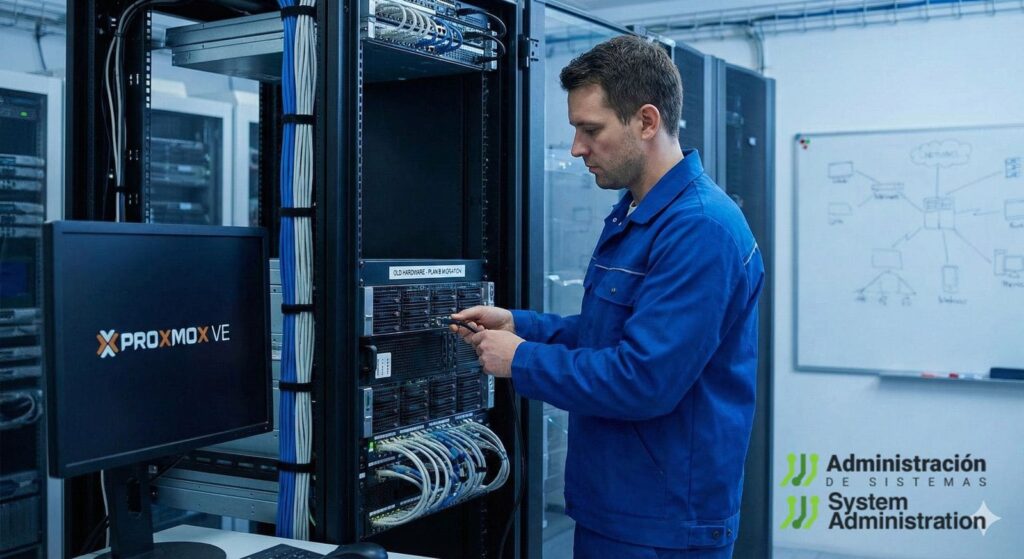
Migrating a physical machine into a Proxmox VE virtual machine often happens at the worst possible time: the server is aging, vendor support has ended, a disk starts showing warnings, or the business simply cannot afford a full reinstall and reconfiguration. In that scenario, P2V (Physical-to-Virtual) becomes a continuity move—capture the system as it is, convert it into an image, and bring it up on a modern hypervisor.
That said, it is not a simple copy-and-paste job. On Windows—especially older versions—changing the disk controller can trigger boot failures (the classic STOP 0x7B) if the correct drivers are not enabled. On Linux, the main concern is ensuring a reliable disk capture and a clean conversion without corruption. The workflow below reflects a common Proxmox-oriented approach, highlighting the decisions that typically determine whether the first boot is smooth—or turns into a long weekend.
1) Before touching the disk: prepare Windows with MergeIDE (when it applies)
In older Windows environments (for example, Windows XP, or migrations from VMware/VirtualBox images where the disk controller changes), a utility commonly referenced is MergeIDE. Its purpose is straightforward: it injects registry keys to enable IDE drivers, increasing the chances that Windows will boot after the virtual hardware changes.
The usual warning applies: there are cases where the system may boot without MergeIDE, but the process becomes less predictable and sometimes harder to recover. For older, more “fragile” Windows builds or systems tightly coupled to legacy drivers, running MergeIDE before imaging is often treated as cheap insurance.
2) Imaging the physical machine: GRML as the rescue environment and ddrescue for the disk image
With the system prepared (or the risk accepted), the most sensitive step begins: capturing a disk image. A common recommendation is to boot the server from a Linux live environment designed for administration and recovery—such as GRML—and then dump the disk contents using GNU ddrescue to an external destination (USB disk, NAS, or a network mount such as NFS/Samba).
ddrescue is popular for a reason: it prioritizes recoverability and can resume safely using a mapfile (state file). In a P2V migration, that matters not only when a disk is failing—it also provides traceability and control over the copy process.
Typical example (adjust devices and mount points to your environment):
# Identify the source disk (e.g., /dev/sda) and mount the destination (e.g., /mnt/backup)
ddrescue -f -n /dev/sda /mnt/backup/server.img /mnt/backup/server.map
# Optional second pass to attempt recovery of bad sectors
ddrescue -d -r3 /dev/sda /mnt/backup/server.img /mnt/backup/server.map
Code language: PHP (php)
Operational discipline here determines outcomes: verify source vs. destination, preserve the mapfile, and avoid reusing a mapfile from another machine.
3) Converting the image into a Proxmox-friendly format
Once the image is created (often RAW via ddrescue), or if you are starting from an existing virtual disk format (VMDK/VDI), the next step is conversion. In the KVM ecosystem, the standard tool is qemu-img, which converts between formats (RAW, QCOW2, VMDK, VDI, etc.). In Proxmox deployments, the usual end state is QCOW2 (if you want file-based disks and snapshots) or RAW on managed storage.
Generic RAW → QCOW2 conversion:
qemu-img convert -f raw -O qcow2 server.img server.qcow2
Code language: CSS (css)
If the source is VMDK:
qemu-img convert -f vmdk -O qcow2 mydisk.vmdk mydisk.qcow2
Code language: CSS (css)
A practical note: conversions can take a long time and should be performed “cold” (with the image not in use).
4) Importing into Proxmox: manual qemu-img workflow vs. qm importdisk (the easier route)
There are two common paths:
Option A: create a VM and replace the disk file
You create an “empty” VM using file-based storage (for example, an NFS-backed directory), then rename the converted QCOW2 so it matches what Proxmox expects. It works, but it requires careful naming and backups of the original VM disk file.
Option B: qm importdisk (recommended for simplicity)
You create a VM (ideally without a disk, or you delete the default disk to keep ordering clean as vmXXX-disk-0) and then import:
qm importdisk <vmid> /path/to/server.qcow2 <storage>
Code language: HTML, XML (xml)
After import, the disk typically appears as “unused” in the VM hardware view. You then attach it and choose a bus appropriate for the first boot (often SATA/IDE for conservative compatibility, then VirtIO for performance once drivers are installed).
5) First boot and the move to VirtIO: better performance without surprises
A common Windows migration strategy is to boot first using a more “forgiving” disk bus (IDE/SATA). Once the OS boots reliably, you install VirtIO inside the guest. This is important because VirtIO generally delivers better throughput and lower overhead than emulated devices.
To “force” Windows to load VirtIO storage drivers, admins often add a small additional disk (e.g., 5 GB) on a VirtIO controller. When Windows requests drivers, they are provided from the VirtIO ISO and installed. After the next reboot, you can switch the primary disk over to VirtIO. The key operational detail: update the boot order, otherwise Proxmox may attempt to boot from the wrong device and cause a moment of panic.
6) If it does not boot: two common fixes that solve more cases than expected
When a VM fails to boot after disk import, two practical remedies often help:
- Detach and reattach the disk: removing the disk and re-adding it from the “unused disk” list can refresh the configuration and device mapping.
- Re-check boot order: after changing buses (SATA ↔ VirtIO) or adding disks, the VM may attempt to boot from the wrong device.
For advanced edge cases, Proxmox also documents broader migration techniques and Windows guest best practices.
Frequently Asked Questions
How can a physical server be migrated to Proxmox without reinstalling Windows or losing configuration?
The typical approach is P2V: image the disk (ddrescue or equivalent), convert with qemu-img if needed, import using qm importdisk, boot first with SATA/IDE, then switch to VirtIO after installing drivers.
What command should be used to convert RAW or VMDK images to QCOW2 for Proxmox?
Use qemu-img convert, specifying the input format (-f raw or -f vmdk) and output format (-O qcow2). Perform the conversion offline and ensure sufficient storage space.
Why does Windows sometimes fail to boot after importing a disk into Proxmox?
Most commonly due to storage controller drivers or an incorrect boot order. On older Windows versions, enabling IDE drivers beforehand (e.g., MergeIDE) can reduce the risk of boot failures when virtual hardware changes.
How can a migrated Windows VM be moved to VirtIO without breaking boot?
Install VirtIO drivers inside Windows first (often by adding a small VirtIO disk to trigger driver installation), then change the primary disk to VirtIO and update the VM’s boot order to ensure it boots from the VirtIO-attached disk.
source: Proxmox