
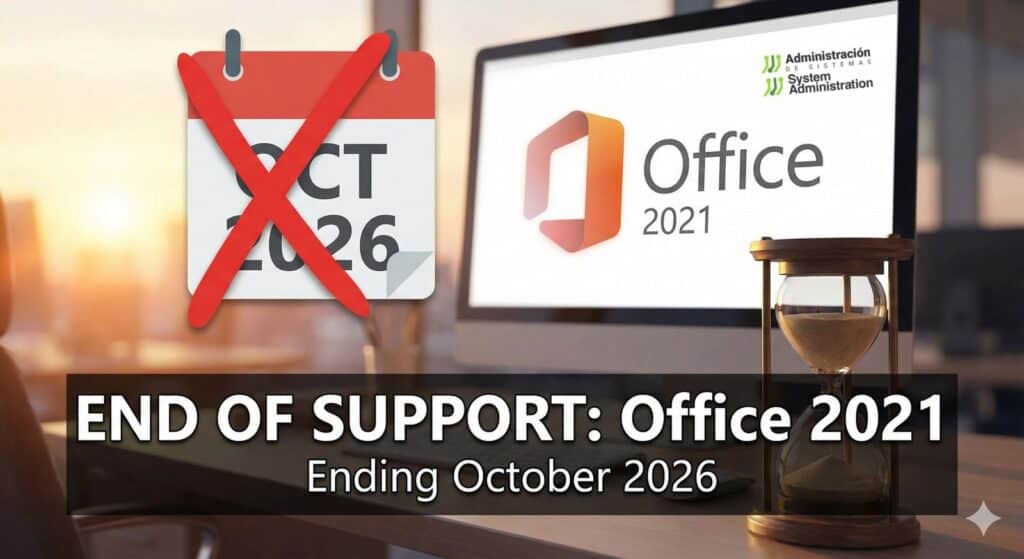
Microsoft has already set the end-of-support date for Office 2021: October 13, 2026. After that day, the apps will still open and run, but they won’t receive new security updates. That’s the key issue: once a product stops getting patches, any newly discovered vulnerability remains unfixable—and over time it becomes an easier target for attacks delivered through files, email attachments, macros, or document-based exploits.
What’s affected (and why it matters)
It’s not just “Office 2021” as a bundle. The real impact is on the individual apps people use every day—Word, Excel, PowerPoint, Outlook, etc. Microsoft’s lifecycle listings show these 2021 apps share the same support horizon (for example, Word 2021 is also set to retire on that date).
From a security perspective, the difference is straightforward:
- Supported products get patches when vulnerabilities are found.
- Unsupported products don’t.
So the risk increases the longer you keep using them after end of support.
What changes on October 13, 2026?
- No more security patches for new vulnerabilities.
- No more bug fixes for newly discovered critical issues.
- The software may keep working, but it’s no longer a safe long-term choice—especially if you regularly receive documents from third parties or use email heavily.
Option 1: Move to Office 2024 (one-time license, no subscription)
If you want to stay on a perpetual license (pay once, no Microsoft 365 subscription), the most direct upgrade path is typically Office 2024. Microsoft’s lifecycle page lists October 9, 2029 as the retirement date for Office 2024.
Option 2: Microsoft 365 (subscription)
A subscription often makes sense if you:
- want continuous feature updates and security improvements,
- rely on cloud collaboration,
- or prefer to keep everything evergreen with minimal maintenance overhead.
The trade-off is ongoing cost.
Option 3: Free / open-source alternatives
If your goal is to reduce cost or avoid vendor lock-in, suites like LibreOffice or ONLYOFFICE can be viable—especially for everyday documents and spreadsheets. The practical caveat: if you depend on complex Excel models, macros, specialized templates, or tight corporate integrations, you should run real compatibility tests before switching.
A simple checklist to avoid last-minute pain
- Inventory what you have installed (versions, devices, users).
- Identify hidden dependencies (macros, templates, add-ins, critical spreadsheets).
- Choose a path (Office 2024 / Microsoft 365 / alternatives) and pilot it.
- Harden document hygiene (disable macros by default, be cautious with unknown files).
- Plan migration before Q4 2026 to avoid rushed changes.
FAQs
Can I keep using Office 2021 after October 13, 2026?
Yes, it will still run, but without security updates, and risk increases over time.
Does Office 2024 have an end-of-support date?
Yes. Microsoft lists October 9, 2029 as its retirement date.
Are individual apps like Word and Excel affected too?
Yes. The Office 2021 apps follow the same lifecycle—for example, Word 2021 is listed as retiring in October 2026.
What’s the best option if I don’t want a subscription?
Usually Office 2024 is the most straightforward way to stay on a one-time license while keeping support for several more years.