
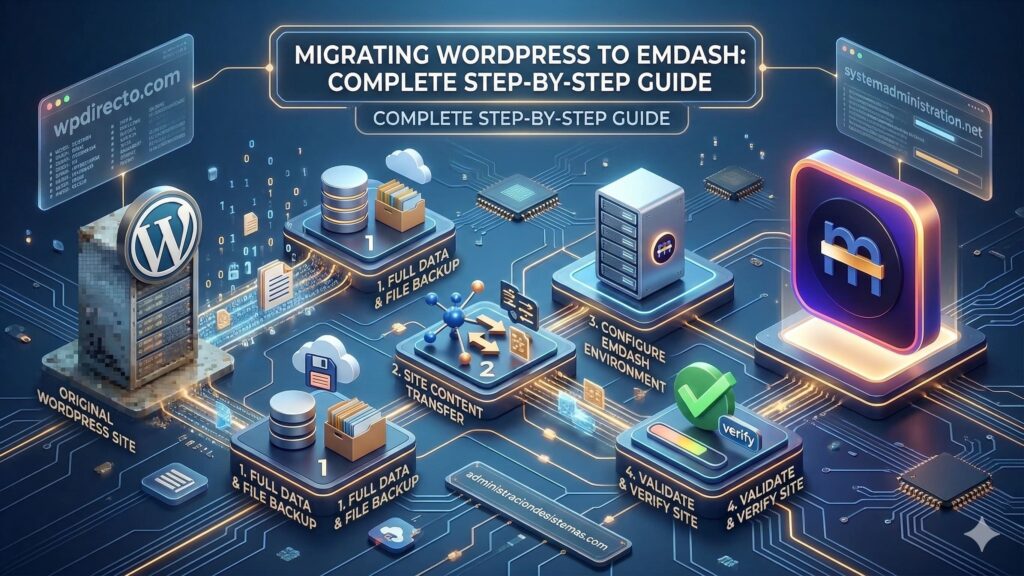
Cloudflare’s EmDash is one of the most interesting CMS launches in years: a full-stack TypeScript CMS built on Astro, licensed under MIT, and designed around sandboxed plugins running in Worker isolates instead of the all-access plugin model WordPress has lived with for decades. Cloudflare also ships a migration path from WordPress, including WXR import and an EmDash Exporter plugin protected by WordPress Application Passwords. The catch is that EmDash is still v0.1.0 preview, so a production migration should be treated as a controlled rebuild, not a casual import.
A successful migration has two goals: move your content cleanly, and rebuild the site behavior without losing URLs, metadata, media, or search visibility. WordPress can export authors, terms, posts, comments, and attachment references as WXR, but that export does not include site options or the attachment files themselves, so you should not confuse “content export” with a full site clone.
1) Audit first: content, URLs, plugins, and custom structures
Before exporting anything, inventory the site:
- posts, pages, and custom post types
- taxonomies and menus
- media volume and any hotlinked assets
- plugins that affect content, SEO, forms, or layout
- permalink structure and redirect needs
For a quick content count, WP-CLI is the fastest starting point:
wp post list --post_type=any --format=count
For content export testing, WordPress supports:
wp export --dir=/tmp/exports
That command generates one or more WXR files with authors, terms, posts, comments, and attachments, but not site configuration or the binary media files themselves.
Tip: create a migration spreadsheet with four columns: content type, current source, EmDash target schema, and theme/plugin dependency. This saves time later when you hit custom post types, ACF-style fields, shortcodes, or PHP-generated sections.
2) Pick the import method: WXR or EmDash Exporter
Cloudflare documents two official migration paths:
- WXR export from WordPress admin
- EmDash Exporter plugin, which exposes a secure endpoint visible only to you and protected by a WordPress Application Password you control
Cloudflare says both methods can bring attached media into EmDash’s media library, and that import can map WordPress custom post types into EmDash content types.
Option A: WXR export
This is the simplest route for a blog, publication, or staging test:
# Export from WordPress
wp export --dir=/tmp/exports
Then create a local EmDash project:
npm create emdash@latest
Cloudflare documents that command as the local starting point for a new EmDash site.
Option B: EmDash Exporter plugin
This is usually the better path for larger sites or repeated syncs before cutover. Cloudflare says the plugin creates a secure endpoint protected by a WordPress Application Password. WordPress defines those as revocable, per-application credentials for programmatic access to the REST API or XML-RPC, separate from the user’s main password and not usable for wp-admin login.
Tip: create a dedicated migration account or a dedicated Application Password just for the migration, revoke it after cutover, and never reuse it for another integration. WordPress explicitly recommends treating Application Passwords like secrets and rotating or revoking them when they are no longer needed.
3) Rebuild content modeling, don’t just copy it
Cloudflare’s most important EmDash migration advantage is not the import itself, but what happens after import. EmDash lets you define schemas directly in the admin panel, creating separate collections in the database instead of squeezing everything into a shared posts table. Cloudflare says you can use this same capability to turn imported WordPress custom post types into native EmDash content types.
A simple schema plan might look like this:
{
  "collections": {
    "portfolio": {
      "fields": {
        "title": { "type": "text", "required": true },
        "client_name": { "type": "text" },
        "project_url": { "type": "url" },
        "featured": { "type": "boolean" }
      }
    }
  }
}
This is not an official EmDash schema snippet from Cloudflare docs, but it is the right planning mindset: define the structure you want in EmDash before you try to force WordPress-era content into it.
Tip: separate “editorial content” from “site functionality.” Posts, pages, authors, and taxonomies migrate. Pricing tables generated in PHP, custom search sidebars, or plugin-dependent widgets usually need redesign, not import.
4) Media: attached files migrate, edge cases do not
Cloudflare says migrating content with EmDash “automatically works to bring any attached media into EmDash’s media library.” That is helpful, but it does not solve every media problem. Hotlinked images, CDN-rewritten paths, old wp-content/uploads/ URLs embedded in body content, or plugin-generated image assumptions may still need cleanup.
Tip checklist for media before cutover:
- search content for
wp-content/uploads - search for absolute URLs to the old domain
- identify externally hosted images
- verify PDFs, video embeds, and downloadable assets
- confirm featured images survived import on representative content types
A practical grep pass from a WordPress export or DB dump often catches issues early:
grep -R "wp-content/uploads" ./exports
grep -R "https://old-domain.com" ./exports
5) Preserve URL structure and SEO
This is where many migrations fail. EmDash uses Astro, and Astro uses file-based routing. That means your route structure should be planned to mirror the existing WordPress permalink structure wherever possible. Astro’s Cloudflare adapter also supports on-demand rendered routes and full server output when needed.
Examples:
WordPress: /%postname%/
Astro:     src/pages/[slug].astroWordPress: /blog/%postname%/
Astro:     src/pages/blog/[slug].astroWordPress: /%category%/%postname%/
Astro:     src/pages/[category]/[slug].astro
Tip: if you cannot keep the same URLs, prepare a redirect map before launch. Do not wait for Search Console to tell you what broke.
A simple redirect planning CSV should include:
old_url,new_url,status
/old-post,/blog/new-post,301
/old-category/old-post,/guides/new-post,301
6) Themes do not port; they are rebuilt
This is the most important expectation to set with stakeholders: WordPress themes do not migrate directly to EmDash. Cloudflare’s own framing is that you can use EmDash’s agent skills and block tooling to help rebuild bespoke blocks and port functionality into EmDash, but this is still a rebuild in Astro, not a direct port of PHP template files.
A practical mapping looks like this:
| WordPress | EmDash / Astro |
|---|---|
header.php, footer.php | Astro layouts |
single.php | Route page component |
archive.php | Collection listing page |
| template parts | Astro components |
functions.php theme logic | Rebuilt as Astro logic or EmDash plugin behavior |
| shortcodes | Components or structured content |
Tip: start with three templates only: homepage, single content page, and archive/list page. Get those stable before recreating secondary templates.
7) Plugin strategy: replace, remove, or rebuild
EmDash plugins run in sandboxed Worker isolates, which is one of the key architectural differences from WordPress. Cloudflare also notes that EmDash depends on Dynamic Workers for secure sandboxed plugins, and those are currently available only on paid Cloudflare accounts. On a free account, you can disable the worker_loaders block in wrangler.jsonc to run without plugins while testing.
That means every WordPress plugin falls into one of three buckets:
- remove: no longer needed
- replace: use an Astro or EmDash-native equivalent
- rebuild: custom functionality with no direct replacement
Tip: classify plugins before migration:
- SEO
- forms
- analytics
- search
- editorial workflow
- e-commerce
- custom fields
- builders/shortcodes
The more your site depends on builders and server-side plugin behavior, the less realistic a “quick migration” becomes.
8) Go-live checklist
Before DNS cutover:
# 1. Back up WordPress first
wp db export backup-before-emdash.sql
WordPress documents wp db export for database backups, and its backup guidance recommends keeping recoverable copies before making major changes.
Then verify:
- final content sync completed
- representative pages render correctly
- images and attachments work
- redirects are ready
- analytics and verification tags are present
- sitemap is updated
- forms and interactive components behave correctly
- old site remains available as rollback or read-only fallback
9) Post-migration verification
After launch, spot-check at least:
- 10–20 URLs across different content types
- metadata and canonical behavior
- image rendering and broken assets
- redirects and 404s
- search crawl behavior
- performance on key templates
Tip: keep WordPress accessible for a short fallback window, even if you make the frontend read-only. Cutting over is easy; rollback discipline is what saves migrations.
Final takeaway
A WordPress-to-EmDash migration can be fast for content, because Cloudflare provides both WXR import and a dedicated exporter path, and EmDash can map custom post types into first-class collections. But a production migration is still a replatforming project, not a one-click import. The content comes across; the architecture, theme, plugin logic, and SEO continuity still need deliberate engineering.