
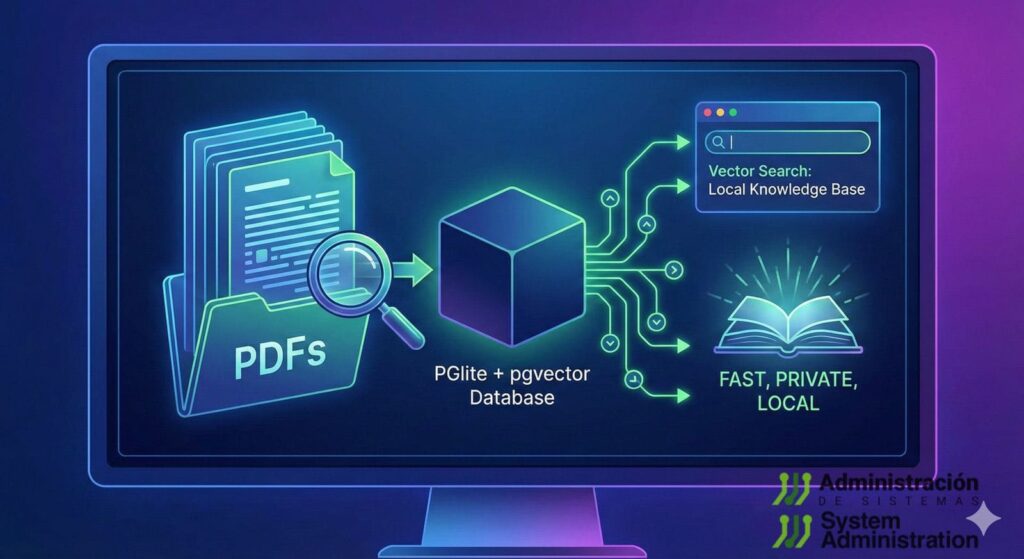
At a time when many documentation and content projects depend on external cloud services, pdf-brain is pushing in the opposite direction: a 100% local PDF library with vector-based semantic search, designed to run entirely on the user’s own machine.
The project, available as a Node package (npm install pdf-brain), works as a kind of “PDF brain”: it extracts text from documents, generates embeddings with Ollama and stores everything in a PGlite database with pgvector to offer meaning-based search, not just keyword matching. For teams working with WordPress — documentation, technical guides, downloadable PDFs, whitepapers — it’s an interesting way to organize and query all that material locally before publishing it.
Local PDF library with no external API or usage costs
The philosophy behind pdf-brain is clear: local-first.
Everything runs on the user’s machine:
- No calls to third-party APIs.
- No token costs or monthly fees.
- PDFs and their embeddings live on disk, under your control.
By default, the library is stored in:
~/Documents/.pdf-library/
├── library.db          # PGlite database (vectors, FTS, metadata)
└── downloads/          # PDFs downloaded from URLs
Code language: PHP (php)
This makes it especially attractive for WordPress teams handling sensitive internal documentation — draft ebooks, technical manuals, client materials — that they don’t want to upload to cloud services just to get “smart search”.
Installation and requirements: Node, npm and Ollama
Setup is straightforward for anyone used to development environments:
npm install pdf-brain
For semantic search, pdf-brain relies on Ollama to generate embeddings:
brew install ollama
ollama pull mxbai-embed-large
Environment variables let you tweak the behavior:
PDF_LIBRARY_PATH– library storage path (default~/Documents/.pdf-library).OLLAMA_HOST– Ollama API endpoint (defaulthttp://localhost:11434).OLLAMA_MODEL– embedding model (defaultmxbai-embed-large).
Simple CLI: add, tag and search PDFs
Usage revolves around a set of straightforward CLI commands. A few examples:
Add PDFs to the library
# Add a local PDF
npx pdf-brain add /path/to/document.pdf

# Add a PDF from a URL
npx pdf-brain add https://example.com/paper.pdf

# Add with tags
npx pdf-brain add /path/to/document.pdf --tags "ai,agents"
Code language: PHP (php)
Search content
- Semantic search (meaning-based, using vectors):
npx pdf-brain search "context engineering patterns"
Code language: JavaScript (javascript)- Full-text search (no embeddings, plain text):
npx pdf-brain search "context engineering" --fts
Code language: JavaScript (javascript)
Library management
# List all documents
npx pdf-brain list

# List by tag
npx pdf-brain list --tag ai

# Get document details
npx pdf-brain get "document-title"

# Remove a document
npx pdf-brain remove "document-title"

# Update tags
npx pdf-brain tag "document-title" "new,tags,here"

# Show library stats
npx pdf-brain stats

# Check Ollama status
npx pdf-brain check
Code language: PHP (php)
For a WordPress-based editorial environment — a tech magazine or a corporate blog, for example — this makes it quick to search across studies, references and documentation before writing or updating online content.
Under the hood: PGlite + pgvector + embeddings
Even though the user just sees CLI commands, under the hood pdf-brain combines several modern pieces from the AI and database ecosystem:
- Text extraction
PDF content is extracted using pypdf and split into overlapping chunks of about 512 tokens. This improves search precision and lets results point to specific relevant passages. - Embeddings with Ollama
Each chunk is transformed into a 1,024-dimensional vector using themxbai-embed-largemodel served by Ollama. Those vectors power the semantic search. - Storage in PGlite + pgvector
Everything is stored in a PGlite database (embedded Postgres), with pgvector support and an HNSW index to speed up similarity search using cosine distance. Combined with Full-Text Search (FTS), it enables hybrid queries (text + vectors).
Conceptually:
PDF → text extraction → chunks → embeddings (Ollama) → PGlite + pgvector
                                ↘ FTS
The end result: you can ask natural-language questions about ideas, concepts or patterns, and pdf-brain returns the most semantically related PDF chunks, not just literal keyword matches.
OpenCode integration and developer workflows
One interesting detail for developers is the native integration with OpenCode, the terminal-based AI coding agent. The pdf-brain repo includes a pdf-brain.ts tool example that can be placed at:
~/.config/opencode/tool/pdf-brain.ts
Code language: JavaScript (javascript)
With that file in place, OpenCode can call commands like add, search, list or stats as tools. This opens the door to:
- Designing agents that automatically search the PDF library while reviewing or writing code.
- Having a “documentation copilot” that consults papers, technical docs or manuals without leaving the terminal.
There’s no direct WordPress integration yet, but it’s easy to imagine workflows where pdf-brain is used locally for internal research and documentation, with WordPress as the publishing layer to the outside world.
Why does this matter for the WordPress ecosystem?
For a WordPress-based newsroom or editorial team, pdf-brain brings a few clear benefits:
- Editorial and dev teams can centralize their technical PDF library (whitepapers, manuals, API guides, RFCs, etc.) without relying on external cloud services.
- Writers can quickly locate precise information before publishing, thanks to semantic search.
- It supports a local-first, privacy-conscious approach, increasingly valued by professionals and European companies alike.
In an era dominated by cloud-based generative AI and subscription services, pdf-brain is a reminder that it’s still possible to build useful, modern and powerful tools that run entirely on your own machine, while still offering advanced functionality.
Frequently asked questions about pdf-brain
Is pdf-brain a WordPress-specific tool?
No. pdf-brain is a general-purpose CLI tool for managing and searching PDFs locally. However, it fits very well into editorial, documentation and development workflows that later publish content on WordPress.
Do I need advanced skills to use pdf-brain?
You need to be comfortable with the command line and have Node/npm installed. For semantic search, you’ll also need to set up Ollama. It’s not a click-and-go app for everyone, but any developer or technical admin should be able to get it running without much trouble.
What advantages does it offer over online PDF management services?
The main advantage is everything runs locally: no PDFs are uploaded to third parties, there are no API costs and you keep full control of the data. The trade-off is that you must maintain your own environment (Ollama, Node, the library itself).
Can pdf-brain be used by a whole editorial team, or only individually?
By default, the library lives in the user’s home folder, but it can be moved to shared locations (for example, via iCloud or other sync systems) by configuring PDF_LIBRARY_PATH. Each team can adapt the setup to its internal workflows.