
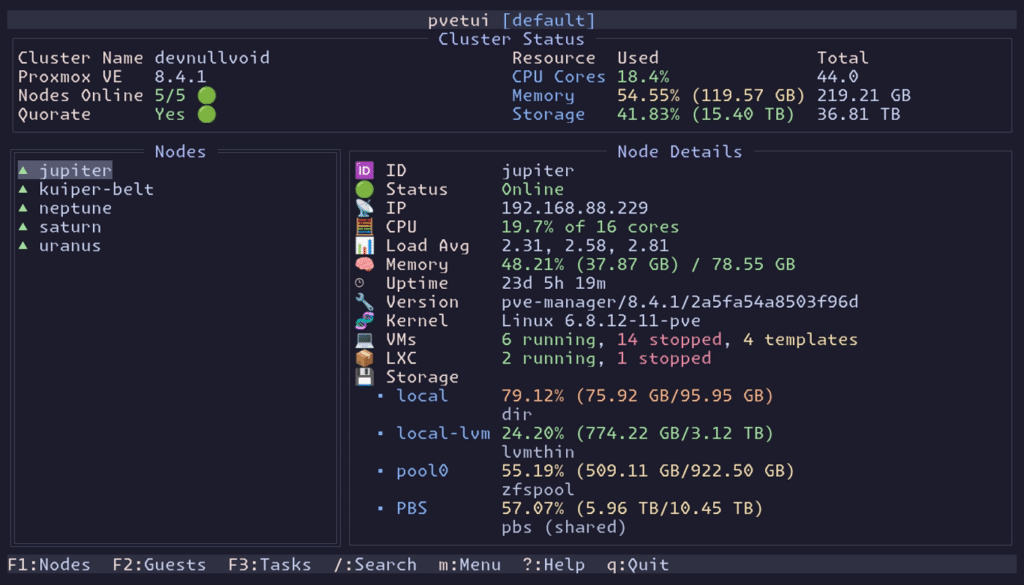
Proxmox Virtual Environment has become a go-to platform for homelabs, SMBs, and production teams that want practical virtualization and containers without unnecessary complexity. But while Proxmox’s web UI is powerful, many admins still live in the terminal—jumping to a browser just to check cluster health, stop a VM, or review tasks can feel slower than it needs to be.
That’s where pvetui comes in. It’s an open-source project that takes a straightforward idea seriously: manage Proxmox VE through a terminal-based interface (TUI), with fast navigation, contextual actions, and a workflow designed for day-to-day operations.
It’s not trying to “replace” the Proxmox web interface. Instead, it targets a real gap: operators who spend hours in SSH sessions, logs, and command-line tools, and want something like an “htop for their virtual infrastructure”—but with management features built in.
What pvetui is, and why it fits real operations
pvetui describes itself as a Terminal User Interface for Proxmox VE. In plain terms: a console app that connects to one or more Proxmox servers/clusters and provides views to manage nodes, virtual machines, containers, and cluster resources.
The philosophy is simple: get in, get context, act—without mouse-driven workflows. Key capabilities highlighted in the project include:
- Fast and responsive UI via intelligent caching
- Full management of VMs, containers, nodes, and cluster resources
- Multi-profile support for managing multiple Proxmox connections
- Interactive config wizard to create and validate profiles from inside the TUI
- Secure authentication using API tokens (recommended) or password auth, with automatic renewal where applicable
- Integrated shells: SSH into nodes and open shells for VMs and containers
- VNC console access through an embedded noVNC client with automatic authentication
- Opt-in plugin system (disabled by default), including features like a “Community Scripts” installer and a command runner
- Aggregate group mode to combine multiple profiles into one unified view, while routing actions back to the correct source cluster
The result: a keyboard-first command center that’s especially useful for quick checks and frequent actions.
The big differentiator: multi-profile + aggregated multi-cluster view
In practice, admins rarely manage a single Proxmox instance. There’s a home cluster, a work cluster, a staging environment, a lab, or multiple locations. pvetui addresses this with a modern multi-profile configuration format, where each profile defines:
- the Proxmox API URL (typically port 8006)
- user and realm
- either token or password (only one method per profile)
- TLS verification settings, SSH user, and optional per-VM SSH user overrides
On top of that, pvetui offers something you don’t always see in smaller tools: Aggregate Group Mode. It lets you assign multiple profiles to a named group (for example, “prod-group”) and get a single combined view across clusters.
There’s an important safety-oriented limitation: migrations stay inside the VM’s original cluster, which avoids the confusion—and potential damage—of pretending that cross-cluster migrations are trivial.
Built-in VNC console: when you really need hands-on access
The VNC console is often the lifeline in Proxmox: broken networking, boot issues, recovery mode—sometimes you just need a console fast.
pvetui includes a noVNC-based console experience that aims to make this one keystroke away. It creates a local WebSocket proxy that connects to the Proxmox VNC endpoint.
Two practical notes matter here:
- VNC ports must be reachable from where you run pvetui (firewalls and segmentation still apply).
- Node VNC shells require password authentication (described as a Proxmox limitation).
So it improves workflow, but it doesn’t bypass real-world network and access constraints.
Plugins: extensibility without turning the tool into a mess
pvetui ships with an opt-in plugin system: plugins are disabled by default and can be enabled via a “Manage Plugins” dialog or the config file.
Examples mentioned:
- community-scripts: adds a community scripts installer to node context menus
- command-runner: runs whitelisted commands on Proxmox hosts via SSH (requires SSH key setup)
- demo-guest-list: a sample plugin
In professional environments, the “command-runner” concept is powerful but sensitive: it needs strict whitelists, proper key management, and thoughtful permissions. The fact that it’s opt-in is the right default.
Installation options: Go, binaries, package managers, and Docker
pvetui supports multiple installation paths:
- Go install (requires Go 1.24+):
go install github.com/devnullvoid/pvetui/cmd/pvetui@latest - Precompiled binaries from Releases
- Package managers: AUR (Arch), Homebrew Cask (macOS), Scoop (Windows)
- Build from source with
make install - Docker usage via
docker compose
That coverage matters because Proxmox users are often split across Linux admin boxes, macOS laptops, and Windows jump hosts.
A quick comparison: Web UI vs CLI vs API automation vs pvetui
Here’s a simple way to place pvetui in the wider Proxmox workflow:
| Method | What it’s good at | Where it shines | Common limits |
|---|---|---|---|
| Proxmox Web UI | Full-featured management, strong visibility | General administration and visual workflows | Slower for repetitive “quick actions”; browser-driven |
| CLI (qm/pct + SSH) | Direct control, highly scriptable, fast for experts | Repetitive operations and custom workflows | Steeper learning curve; less aggregated visibility |
| API automation | Scale, integrations, repeatable pipelines | Larger environments, CI/CD, internal tooling | Requires development and ongoing maintenance |
| pvetui (TUI) | Fast keyboard-first ops, views + actions, built-in SSH/VNC | Daily operations, monitoring, quick interventions | Still depends on API/network access; not a full automation replacement |
The practical takeaway: pvetui is best as a workflow accelerator—a complement to the web UI and automation, not a replacement for either.
Security basics: tokens, encrypted configs, and SSH keys
From a security perspective, the project emphasizes two common best practices:
- Prefer API tokens over passwords
- Support SOPS-encrypted config files, and automatic handling of secrets in config files (as described in the documentation)
For SSH, the guidance is also familiar and sensible: use SSH keys, avoid password-based SSH logins, and control privilege boundaries carefully—especially if you enable plugins that execute commands remotely.
One more detail worth noting: the trademark disclaimer
The repository includes a clear notice that Proxmox® is a registered trademark and that this project is not affiliated with or endorsed by Proxmox Server Solutions GmbH. It’s a small thing, but it’s the kind of clarity that helps open-source projects stay on solid ground.
FAQs
Who benefits most from using pvetui with Proxmox VE?
Admins and operators who manage Proxmox frequently and prefer terminal-first workflows—fast checks, quick VM/CT actions, and immediate SSH/VNC access without switching tools.
Does pvetui replace the Proxmox web interface?
No. It’s best viewed as a complementary tool for daily ops and rapid actions. The web UI remains the most complete interface for configuration and broader administration.
What’s the recommended authentication method for pvetui?
Proxmox API tokens. They’re generally safer than passwords and fit better with least-privilege access, auditing, and rotation practices.
Can pvetui manage multiple clusters at once?
Yes. It supports multiple profiles and an aggregate group mode that shows a unified view across profiles while keeping actions routed to the correct cluster.
Sources:
- GitHub — devnullvoid/pvetui: Terminal UI for Proxmox VE