
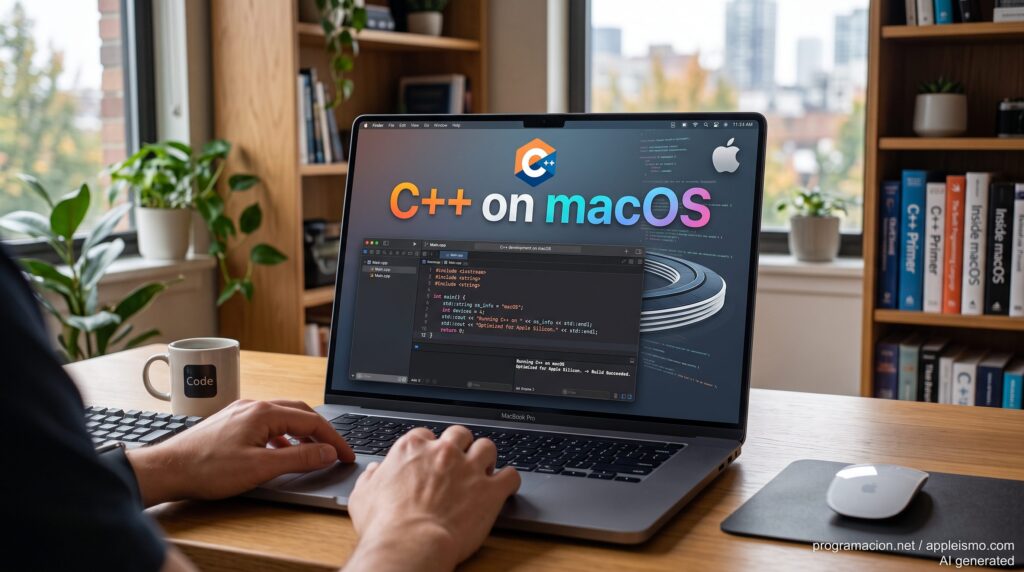
macOS includes almost everything needed to turn a Mac into a C++ development workstation without installing a complete GNU environment. Apple uses Clang and LLVM as part of its official toolchain, with support for C, C++, Objective-C, and Objective-C++, while Swift is now the preferred choice for developing new applications for Apple platforms. For programmers and system administrators, understanding these tools goes far beyond compiling a simple hello.cpp: it also helps with ARM64 architectures, SDKs, libraries, universal binaries, linking, and compatibility between macOS versions.
The key points about native programming on macOS in 30 seconds
- Apple includes Clang, LLVM, and
libc++in its development tools for compiling C and C++. - Swift is Apple’s preferred option for new macOS, iPhone, iPad, Apple Watch, and Vision Pro applications.
- Objective-C remains important for maintaining legacy software and libraries from the Cocoa ecosystem.
- C and C++ are particularly well suited to system software, CLI tools, engines, libraries, and cross-platform code.
- Metal Shading Language is designed for GPU programming through Metal.
For an administrator coming from Linux, the main difference is usually not C++ itself but everything surrounding the compiler. Instead of GCC, glibc, ELF, and GNU tools, macOS revolves around Apple Clang, libc++, Apple SDKs, Mach-O, xcrun, LLDB, and system frameworks.
Apple Silicon adds another variable. Current Macs use ARM64, while applications, libraries, and build servers based on x86-64 still exist. Knowing which architecture an executable contains and which version of macOS it targets can save hours when troubleshooting problems that initially appear to be source-code errors.
Preparing macOS to Compile C and C++
Working from Terminal does not require installing the full Xcode package. Apple provides Command Line Tools, which include the essential components required to develop and compile software.
Installation can be started with:
xcode-select --installOnce installation is complete, it is useful to check which development directory is active:
xcode-select -pWhen only Command Line Tools are installed, a common result is:
/Library/Developer/CommandLineToolsThe next step is to check Clang:
clang++ --versionOn an Apple Silicon Mac, the target should look similar to:
Target: arm64-apple-darwin...Code language: HTTP (http)On an Intel Mac, it will normally be:
Target: x86_64-apple-darwin...Code language: HTTP (http)There is another particularly useful way to locate tools inside Apple’s development environment:
xcrun --find clang++To identify the active macOS SDK:
xcrun --show-sdk-pathxcrun is worth adding to the toolbox of any Mac administrator who regularly compiles software. On machines with several Xcode versions, different SDKs, or alternative toolchains, it helps determine which tool is actually being used.
Apple documents swift, clang, and LLVM as part of its development toolchain for building Swift, C, C++, Objective-C, and Objective-C++ code.
Compiling a First C++ Program
A minimal example can be saved as hello.cpp:
#include <iostream>
#include <string>

int main()
{
    std::string name;

    std::cout << "Name: ";
    std::getline(std::cin, name);

    std::cout << "Hello, " << name << "!\n";

    return 0;
}Code language: PHP (php)
Compile it with:
clang++ hello.cpp -o helloCode language: CSS (css)Then run it:
./helloFor a modern project, it is better to specify the C++ standard explicitly:
clang++ -std=c++20 hello.cpp -o helloOr, when required by the code:
clang++ -std=c++23 hello.cpp -o helloApple maintains its own C++ compatibility information for Apple Clang and libc++. This matters because being able to select -std=c++23, or simply having a recent Clang release, does not necessarily mean that every feature in that standard is available in every Xcode or macOS version.
During development, enabling compiler warnings is also a good practice:
clang++ -std=c++20 \
  -Wall \
  -Wextra \
  -Wpedantic \
  hello.cpp \
  -o hello
For debugging:
clang++ -std=c++20 -Wall -Wextra -g hello.cpp -o hellomacOS includes LLDB:
lldb ./helloOnce inside LLDB:
breakpoint set --name main
runCode language: JavaScript (javascript)
There is therefore no need to install GDB just to have a debugger that integrates well with Apple’s native toolchain.
Apple Silicon, Mach-O, and Universal Binaries
For macOS system administration, compiling successfully is only part of the job. It is equally useful to understand what has actually been compiled.
The system architecture can be checked with:
uname -mOn Apple Silicon:
arm64The resulting executable can then be examined with:
file ./helloA typical native build should report something similar to:
Mach-O 64-bit executable arm64This highlights one important difference from Linux: macOS executables use the Mach-O format rather than ELF.
Another useful command is:
otool -L ./helloIt shows the dynamic libraries required by the program.
For a C++ executable, system components such as libc++ may appear in the output.
Additional header information can be inspected with:
otool -hv ./helloThese tools become particularly useful when an application works on the developer’s Mac but fails on another machine.
Forcing a Specific Architecture
Clang can explicitly target ARM64:
clang++ -arch arm64 hello.cpp -o hello-arm64Code language: CSS (css)It can also target x86-64:
clang++ -arch x86_64 hello.cpp -o hello-x86_64Code language: CSS (css)However, selecting another architecture does not automatically solve dependency issues. Every linked library must also be available for the selected architecture.
A common error is:
Undefined symbols for architecture arm64This does not necessarily indicate a C++ programming error. The linker may simply be receiving an x86-64 library while trying to produce an ARM64 executable.
A library can be checked with:
file libexample.dylibCode language: CSS (css)Creating a Universal Binary
macOS supports binaries containing code for multiple architectures.
Each version can first be compiled separately:
clang++ -arch arm64 hello.cpp -o hello-arm64
clang++ -arch x86_64 hello.cpp -o hello-x86_64Code language: CSS (css)
They can then be combined:
lipo -create \
  hello-arm64 \
  hello-x86_64 \
  -output hello-universal
And inspected with:
lipo -info hello-universalA binary built this way can contain both ARM64 and x86-64 code.
For internal tools that will only run on an organization’s Apple Silicon Macs, this is usually unnecessary. For software distributed across a heterogeneous Mac fleet, it can still be useful.
Targeting a Specific macOS Version
Another important variable is the deployment target.
It can be specified during compilation:
clang++ -std=c++20 \
  -mmacosx-version-min=14.0 \
  hello.cpp \
  -o hello
This does not automatically make the use of newer APIs compatible with macOS 14, but it helps define the minimum operating-system target for the resulting binary.
This becomes particularly important when software is compiled on a recent Mac but later distributed to servers or workstations running older macOS versions.
The Best Native Languages for Apple Development
Talking about the “best language for Apple” without defining the workload rarely leads to a useful answer.
Apple supports several languages within its development environment and Xcode. Swift, Objective-C, C, and C++ all have established roles, while the right choice changes depending on whether the goal is a graphical application, a system tool, a cross-platform engine, or GPU code.
| Language | Best fit on Apple platforms | Current role |
|---|---|---|
| Swift | New macOS, iOS, iPadOS, watchOS and visionOS apps, CLI tools and services | Preferred option for new Apple projects |
| Objective-C | Existing Cocoa code, older frameworks, interoperability | Important for maintaining legacy software |
| C++ | Engines, cross-platform apps, HPC, libraries and performance-sensitive code | Officially supported through Apple Clang |
| C | Systems, low-level libraries, POSIX and interoperability | Still fundamental in the stack |
| Objective-C++ | Connecting Cocoa/Objective-C with C++ | Useful interoperability language |
| Metal Shading Language | Shaders, graphics and GPU compute | Specialized language for Metal |
1. Swift: The First Choice for a New Apple Application
If a project is being created specifically for macOS, iOS, or another modern Apple platform, Swift is normally the most natural starting point.
Apple presents Swift as its preferred language for new software on its platforms. Swift provides type safety, optionals, automatic memory management, modern concurrency, and direct access to frameworks such as SwiftUI, Foundation, and AppKit.
A minimal program can be written as:
print("Hello from Swift")Code language: PHP (php)It can be executed directly:
swift hello.swiftCode language: CSS (css)Or compiled:
swiftc hello.swift -o hello
./hello
Swift is not limited to iPhone interfaces. It is now positioned as a general-purpose, cross-platform language that can also be used for CLI tools, services, embedded software, and other workloads.
That makes it an option worth considering for internal macOS administration tools.
An administrator can produce a native executable without depending on Python, Node.js, or Ruby being installed on the target Mac.
2. Objective-C: Less Common for New Projects, Still Important
Objective-C was Apple’s primary Cocoa development language for many years.
For a new application it is rarely the first choice over Swift, but it remains present in large codebases and frameworks.
Its syntax is immediately recognizable:
#import <Foundation/Foundation.h>

int main(void)
{
    @autoreleasepool {
        NSLog(@"Hello from Objective-C");
    }

    return 0;
}Code language: PHP (php)
It can be compiled from Terminal while linking Foundation:
clang hello.m \
  -framework Foundation \
  -o helloCode language: CSS (css)
For developers working with older applications, enterprise agents, or legacy macOS code, being able to understand Objective-C remains useful.
3. C++: Performance, Tooling, and Cross-Platform Software
C++ occupies a different position.
Apple officially supports it through Apple Clang and libc++, making it particularly suitable for:
- game engines;
- rendering;
- simulation;
- multimedia processing;
- databases;
- scientific software;
- CLI tools;
- cross-platform libraries;
- applications where much of the same code must also compile on Linux or Windows.
C++ can also increasingly interoperate with Swift.
This model is particularly interesting for larger projects. A macOS interface can be written in Swift while an engine shared with Linux and Windows remains in C++.
4. C: Small, Stable, and Still Difficult to Avoid
C remains present in the lower layers of the system.
Although few new graphical macOS applications would be written entirely in C, it continues to be useful for:
- UNIX utilities;
- libraries;
- POSIX APIs;
- parsers;
- networking software;
- embedded code;
- interoperability between languages.
A simple example:
#include <stdio.h>

int main(void)
{
    printf("Hello from C\n");
    return 0;
}Code language: PHP (php)
Compile it with:
clang hello.c -o helloCode language: CSS (css)For system administrators who also work with Linux, C has another advantage: much of the knowledge transfers between both operating systems, provided the software does not depend on Linux-specific kernel APIs.
5. Objective-C++: The Bridge Many Developers Forget
Objective-C++ allows C++ and Objective-C to coexist within the same source file.
The usual extension is:
.mmCode language: CSS (css)This allows an application to keep its core logic in C++ while using Cocoa APIs through a relatively thin integration layer.
It can be particularly useful for legacy applications, engines, and cross-platform software.
Conceptually:
Swift / Objective-C
        ↓
Objective-C++
        ↓
C++
It should not necessarily be viewed as the language in which to start an application from scratch, but rather as a valuable interoperability mechanism.
6. Metal Shading Language: When the Code Runs on the GPU
There is another specialized language worth including in Apple’s native development environment: Metal Shading Language (MSL).
Metal is Apple’s API for graphics and GPU compute. Its shading language is used to write kernels that execute on Apple GPUs.
A compute kernel looks quite different from conventional C++:
#include <metal_stdlib>
using namespace metal;

kernel void add_arrays(
    device const float* a [[buffer(0)]],
    device const float* b [[buffer(1)]],
    device float* result [[buffer(2)]],
    uint id [[thread_position_in_grid]])
{
    result[id] = a[id] + b[id];
}Code language: PHP (php)
MSL is not a replacement for Swift or C++. It is the appropriate language when the code being written is intended to execute on a GPU managed through Metal.
C++ can also interact directly with Metal through metal-cpp, Apple’s official C++ interface for the Metal API.
What About Rust?
Rust deserves a separate mention because it is increasingly common in systems software developed on Macs.
Rust can generate native executables for macOS and Apple Silicon, and it can be an excellent choice for CLI tools, agents, networking software, and cross-platform components, particularly where memory safety matters.
However, it is not part of the core set of languages Apple promotes as its primary application-development toolchain.
The same distinction applies to Go, Zig, Python, and other languages. They can all work very well on macOS, but “runs natively on macOS” and “is directly integrated into Apple’s development model” are not exactly the same thing.
What a Sysadmin Should Know About macOS Native Binaries
A system administrator does not need to master C++ to diagnose many problems involving native executables.
A few commands can reveal a considerable amount of information.
Architecture:
file programArchitectures inside a Universal Binary:
lipo -info programDynamic libraries:
otool -L programCode-signing information:
codesign -dv --verbose=4 programSignature verification:
codesign --verify --verbose programGatekeeper assessment:
spctl --assess --verbose programAnd if the application crashes:
lldb ./programThis is where simply “knowing how to compile C++” starts to become genuine macOS systems knowledge.
When bits/stdc++.h Appears Again
C++ code copied from GNU-oriented environments may contain:
#include <bits/stdc++.h>Code language: HTML, XML (xml)It should not be expected to work with Apple’s standard environment.
bits/stdc++.h is not part of the ISO C++ standard. It is mainly associated with GNU libstdc++.
The portable alternative is to include the headers actually required:
#include <iostream>
#include <vector>
#include <algorithm>
#include <string>Code language: HTML, XML (xml)
This makes the code suitable for Apple’s libc++ and also improves portability between different toolchains.
CMake: When the Command Line Starts Becoming a Build System
For one or two files, calling clang++ directly is convenient.
As dependencies and platforms multiply, a build system such as CMake becomes more practical.
A minimal CMakeLists.txt might contain:
cmake_minimum_required(VERSION 3.20)

project(MacTool LANGUAGES CXX)

set(CMAKE_CXX_STANDARD 20)
set(CMAKE_CXX_STANDARD_REQUIRED ON)

add_executable(mactool src/main.cpp)Code language: JavaScript (javascript)
Then:
cmake -S . -B build
cmake --build build
This makes it easier to maintain the same project across macOS and Linux without manually writing different clang++ commands for every source file.
For administrators compiling internal tools or open-source software, understanding this layer is often more useful in the long term than memorizing dozens of compiler options.
The final language choice depends on the layer being built. Swift fits modern Apple APIs best, C++ is well suited to engines and performance-sensitive components, C remains relevant at lower levels, and Objective-C still matters throughout the Cocoa legacy. Metal Shading Language enters the picture when the target moves from the CPU to the GPU.
A modern development Mac should therefore not be seen simply as a machine “for programming in Swift.” It also provides a complete UNIX development toolchain capable of building C and C++ software, debugging it with LLDB, generating ARM64 or universal binaries, and combining several languages within the same application.
Frequently Asked Questions
What is the best language for native macOS applications?
For a new application focused on Apple platforms, Swift is normally the main choice and Apple’s preferred language for modern development. C++ can complement it when a project contains cross-platform or performance-sensitive components.
Is C++ or Swift better for Mac development?
It depends on the project. Swift offers more direct integration with modern Apple frameworks, while C++ is particularly useful for engines, libraries, scientific software, system tools, and code shared with Linux or Windows.
Does Apple use GCC or Clang for C++?
Apple’s official development environment uses Apple Clang together with libc++. Clang is available through both Xcode and the standalone Command Line Tools.
Which languages can produce native Apple Silicon applications?
Swift, Objective-C, C, and C++ have direct integration with Apple’s toolchain and can generate ARM64 code. Languages such as Rust, Go, and Zig can also produce native macOS executables, although they use their own toolchains and have different levels of integration with Apple APIs.
Sources:
- Appleismo
- Apple Developer, C++ Language Support.
- Apple Developer, Swift and Swift Pathway.
- Apple Developer, Development Process, Tools and Distribution.
- Apple Developer, Metal and metal-cpp.
- Swift.org, official Swift language documentation.