
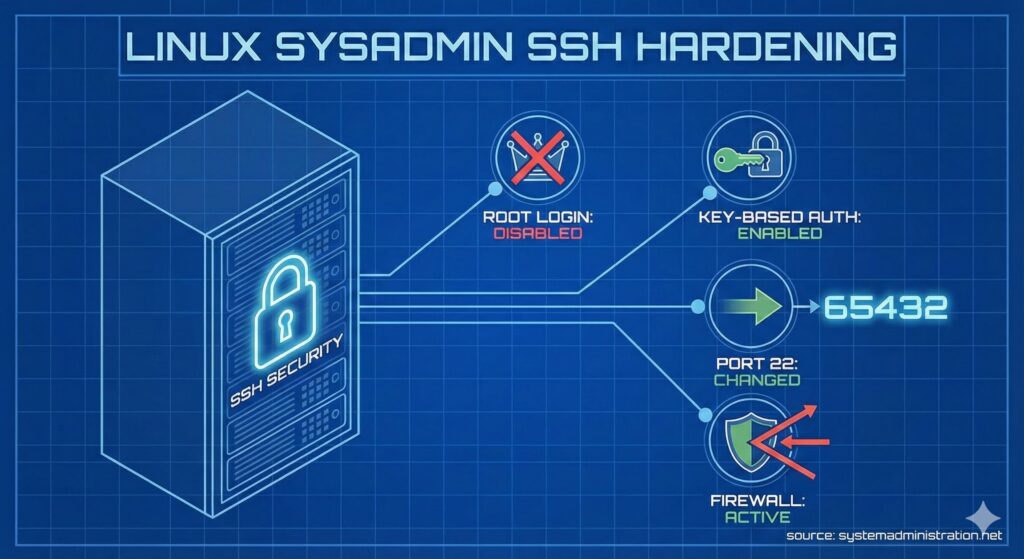
SSH (Secure Shell) is one of the most important tools for Linux system administrators and developers. It lets you log in securely to remote machines, run commands, manage files, transfer data, forward ports, and even run graphical apps remotely.
The problem?
Using SSH with default settings isn’t always safe. Attackers are constantly scanning the internet for open SSH ports and weak logins. That’s why learning how to properly configure and secure SSH is a must-have skill.
This guide walks through key SSH settings and security tips that any Linux beginner should understand to keep their servers more secure and stable.
1. Change the Default SSH Port
By default, SSH listens on port 22 — one of the most heavily targeted ports by bots and scanners. A simple way to reduce noise is to move SSH to a non-standard port.
Edit the SSH configuration file:
sudo nano /etc/ssh/sshd_config
Find:
#Port 22
Code language: CSS (css)
Remove the # and change it, for example:
Port 2200
Restart the service:
# Debian/Ubuntu
sudo systemctl restart ssh

# RHEL/CentOS
sudo systemctl restart sshd
Code language: PHP (php)
Then open the new port in your firewall.
FirewallD:
sudo firewall-cmd --permanent --zone=public --add-port=2200/tcp
sudo firewall-cmd --reload
Code language: PHP (php)
UFW:
sudo ufw allow 2200/tcp
On newer systems where SSH is managed via a systemd socket, you may need an override:
sudo mkdir -p /etc/systemd/system/ssh.socket.d
sudo bash -c 'cat > /etc/systemd/system/ssh.socket.d/listen.conf <<EOF
[Socket]
ListenStream=
ListenStream=2200
EOF'

sudo systemctl daemon-reload
sudo systemctl restart ssh      # or sshd, depending on your distro
Code language: PHP (php)
2. Disable Direct Root SSH Login
Allowing root to log in directly over SSH is dangerous. It gives attackers a single, well-known account to brute-force.
In sshd_config, find:
PermitRootLogin yes
Change it to:
PermitRootLogin no
Restart SSH:
sudo systemctl restart sshd
From now on, log in as a regular user and use sudo for admin tasks.
3. Log In Without a Password Using SSH Keys
Password logins are easy to guess, easy to brute-force, and annoying if you connect often.
Key-based SSH authentication is both safer and more convenient.
Generate a key pair on your local machine:
ssh-keygen -t rsa -b 4096
Copy your public key to the server:
ssh-copy-id user@remote-server
Code language: CSS (css)
Now you can log in without typing a password:
ssh user@remote-server
Code language: CSS (css)
4. Allow Only Specific Users or Groups to Use SSH
To tighten security, you can explicitly define which users or groups are allowed to connect via SSH.
In sshd_config:
AllowUsers alice bob
Or, for groups:
AllowGroups admins devops
Restart SSH:
sudo systemctl restart sshd
Only those users or groups will be allowed to log in via SSH.
5. Show a Login Banner or Warning Message
Displaying a message on SSH login can be useful for welcome text or legal/security warnings.
For a simple message (MOTD), edit:
sudo nano /etc/motd
For a formal/legal warning, create:
sudo nano /etc/issue.net
Then in sshd_config:
Banner /etc/issue.net
Restart SSH:
sudo systemctl restart sshd
Everyone who logs in via SSH will see that message.
6. Trace Failed SSH Login Attempts
Monitoring failed logins helps you detect brute-force attacks and suspicious activity.
On Debian/Ubuntu:
sudo grep "Failed password" /var/log/auth.log
Code language: JavaScript (javascript)
On RHEL/CentOS:
sudo grep "Failed password" /var/log/secure
Code language: JavaScript (javascript)
For real-time monitoring:
sudo journalctl -u sshd -f
7. Restrict SSH Access by IP Address
You can add another layer of security by allowing SSH only from specific IPs.
In sshd_config:
AllowUsers user@192.168.1.100
Code language: CSS (css)
Or enforce it via the firewall.
FirewallD:
sudo firewall-cmd --permanent --zone=public \
  --add-rich-rule='rule family="ipv4" source address="192.168.1.100" port protocol="tcp" port="22" accept'
sudo firewall-cmd --reload
Code language: PHP (php)
UFW:
sudo ufw allow from 192.168.1.100 to any port 22
Code language: CSS (css)
8. Set an Idle Timeout for SSH Sessions
Forgotten open sessions are a potential risk. You can automatically disconnect idle SSH sessions.
In sshd_config:
ClientAliveInterval 300
ClientAliveCountMax 0
This will terminate idle sessions after about 5 minutes.
9. Enable Two-Factor Authentication (2FA) for SSH
2FA makes SSH logins much harder to compromise.
On Debian/Ubuntu:
sudo apt install libpam-google-authenticator
google-authenticator
Enable the PAM module in:
sudo nano /etc/pam.d/sshd
Add:
auth required pam_google_authenticator.so
Code language: CSS (css)
In sshd_config:
ChallengeResponseAuthentication yes
Restart SSH:
sudo systemctl restart sshd
From now on, SSH logins will require both a password (or key) and a time-based code.
10. Use Fail2ban to Limit SSH Brute-Force Attempts
Fail2ban bans IPs that fail authentication repeatedly within a short time.
Install on Debian/Ubuntu:
sudo apt install fail2ban
Create or edit:
sudo nano /etc/fail2ban/jail.local
Add:
[sshd]
enabled = true
port = ssh
maxretry = 3
Code language: JavaScript (javascript)
Restart:
sudo systemctl restart fail2ban
11. Configure Key-Based SSH Auth and Disable Passwords
Once key-based auth works, you can completely disable password logins.
Generate a modern key:
ssh-keygen -t ed25519
ssh-copy-id user@server
Code language: CSS (css)
In sshd_config:
PasswordAuthentication no
Restart:
sudo systemctl restart sshd
Now only users with a valid private key can log in.
12. Allow or Deny SSH Using hosts.allow and hosts.deny
TCP Wrappers let you control access using /etc/hosts.allow and /etc/hosts.deny.
In /etc/hosts.allow:
sshd: 192.168.1.100
Code language: CSS (css)
In /etc/hosts.deny:
sshd: ALL
Code language: HTTP (http)
Only that IP will be allowed to connect via SSH.
13. Check and Manage Active SSH Sessions
To see who is currently logged in:
who
# or
w
Code language: PHP (php)
To kill all sessions from a specific user:
sudo pkill -u username
Regularly checking active sessions helps you spot unexpected access.
14. Use SSH Tunnels (Port Forwarding)
SSH tunneling encrypts traffic to internal services.
Example of local port forwarding:
ssh -L 8080:localhost:80 user@remote-server
Code language: CSS (css)
Anything sent to localhost:8080 on your machine is forwarded to localhost:80 on the remote server.
15. Enable Verbose SSH Logging for Troubleshooting
Verbose mode is very useful when SSH connections fail.
ssh -vvv user@server
Code language: CSS (css)-v, -vv, and -vvv increase the amount of debug output and help you pinpoint config or network issues.
16. Harden SSH with Strong Ciphers and Protocols
You can limit SSH to modern, secure algorithms in sshd_config:
Protocol 2
Ciphers aes256-ctr,aes192-ctr,aes128-ctr
MACs hmac-sha2-512,hmac-sha2-256
KexAlgorithms curve25519-sha256@libssh.org
Code language: CSS (css)
Restart SSH afterwards:
sudo systemctl restart sshd
17. Limit SSH Access to a Specific Port Range
If you use firewalls heavily, you may want to allow only specific port ranges.
UFW:
sudo ufw allow 1024:1040/tcp
FirewallD:
sudo firewall-cmd --permanent --add-port=1024-1040/tcp
sudo firewall-cmd --reload
18. Change SSH Login Grace Time
You can reduce how long SSH waits for a user to authenticate.
In sshd_config:
LoginGraceTime 30
Restart SSH:
sudo systemctl restart sshd
If the user doesn’t authenticate within 30 seconds, the connection is closed.
19. Enable SSH Compression for Slow Connections
Compression can speed up SSH over slow links.
Per connection:
ssh -C user@server
Code language: CSS (css)
Or permanently in your client config (~/.ssh/config):
Compression yes
20. Use SSH Aliases for Easier Access
If you manage multiple servers, aliases save a lot of typing.
Edit ~/.ssh/config:
Host myserver
  HostName 192.168.1.50
  User alice
  Port 2200
Code language: CSS (css)
Then you can just run:
ssh myserver
21. Forward GUI Applications Over SSH (X11 Forwarding)
SSH can also forward graphical apps from the server to your local machine.
Connect with X11 forwarding:
ssh -X user@server
Code language: CSS (css)
Then, for example:
gedit
Make sure the server allows X11 forwarding:
X11Forwarding yes
Final Thoughts
SSH is the main entry point to your Linux servers. Configuring it properly is the difference between a reasonably protected system and an easy target.
Start with the basics:
- change the default port
- disable root login
- use SSH keys instead of passwords
Then add more layers over time: 2FA, Fail2ban, IP restrictions, strong ciphers, idle timeouts, aliases and tunnels.
Mastering these practices will help you protect your infrastructure from attacks, simplify your daily work, and operate like a confident Linux system administrator.