
On the outside they look similar: a “little box” where you store your files. But inside, an HDD and an SSD have nothing in common. That internal difference is what explains why a laptop can take 3 minutes to boot… or 15 seconds.
If you’re thinking about upgrading a PC, laptop or server, understanding what each type of drive offers can save you money, time… and quite a few headaches.
HDD: the classic with lots of space and low cost
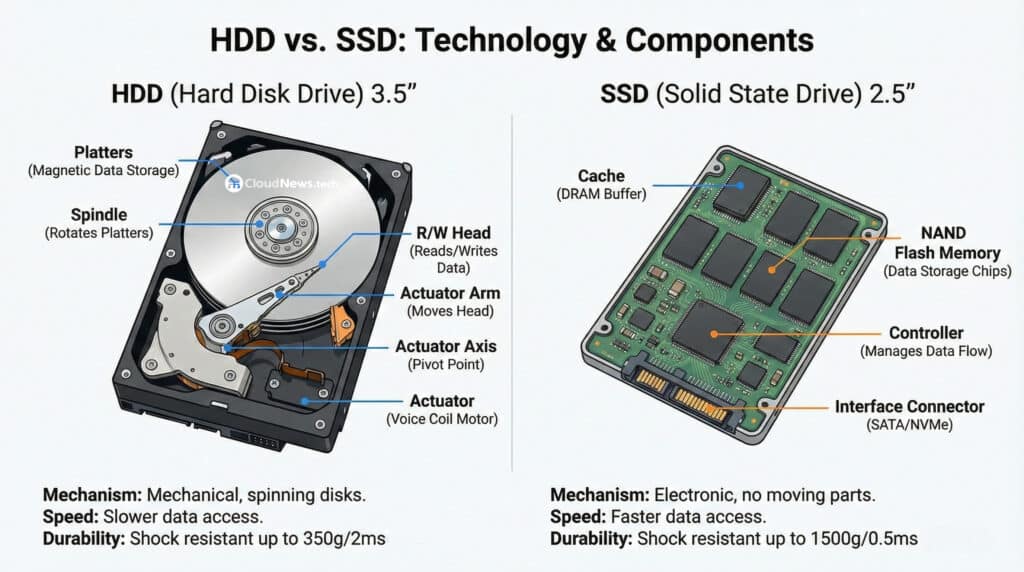
The HDD (Hard Disk Drive) is the traditional mechanical hard drive. It works like a miniature record player:
- Several platters that spin at high speed
- A spindle motor that keeps them rotating
- A read/write head that moves over the platters
- An actuator arm that positions the head exactly where the data is
Every time the system needs a file, the head has to physically “travel” to the right spot. That mechanical movement is what makes HDDs much slower than SSDs for random access.
HDD strengths:
- Lots of capacity for little money
- Ideal for storing thousands of photos, videos, backups or large files
- Perfect for “cold storage”: data you don’t access every day
HDD weaknesses:
- Clearly slower, especially when opening many small files
- Very sensitive to shocks and vibration (there are moving parts)
- More noise and higher power consumption
SSD: the silent “turbo” of the system
The SSD (Solid State Drive) works in a completely different way. There are no moving parts; everything is electronic:
- NAND flash memory chips, where the data actually lives
- A controller, which decides how data is written and read
- Cache, which speeds up repeated operations
Because it doesn’t depend on motors or heads, access to data is almost instant. That’s why swapping an HDD for an SSD often feels like getting a brand-new machine, even with the same CPU.
SSD advantages:
- Much faster reads and writes
- Very quick operating system startup
- Much more resistant to bumps and movement (ideal for laptops)
- Lower power usage, less heat and zero noise
SSD drawbacks:
- Price per terabyte is still higher than HDDs
- Very cheap models can lose performance when almost full
Quick comparison: HDD vs SSD (and NVMe SSD)
To make it clearer, here’s a table with rough, real-world characteristics:
| Feature | HDD 3.5″ / 2.5″ | SATA SSD 2.5″ | NVMe SSD (M.2) |
|---|---|---|---|
| Internal technology | Spinning platters + head | NAND flash + controller | NAND flash + more advanced controller |
| Typical sequential speed | 100–200 MB/s | 400–550 MB/s | 2.000–7.000 MB/s |
| Access time | Milliseconds | Tenths of a millisecond | Well below 0,1 ms |
| Noise | Yes (motor and head) | No | No |
| Shock resistance | Low | High | High |
| Power consumption | Medium / High | Low | Low / Medium |
| Approx. price per 1 TB | Very low | Medium | Somewhat higher |
| Typical use | Backups, large file storage | OS, apps, games, daily workloads | OS, heavy apps, editing, AI workloads |
The numbers are approximate, but they show the idea: even a “basic” SATA SSD is already a huge leap compared to an HDD.
What does this really mean for the user?
Beyond the specs, what matters is how it feels day to day:
- A PC with HDD only:
- Slow boot times
- Opening heavy programs (browser with many tabs, office suite, design tools) feels sluggish
- With many things open, everything “drags”
- The same PC, but with an SSD:
- Boots and reaches the desktop in seconds
- Apps open much faster
- The system responds more smoothly, even with multiple tasks running
CPU and RAM are important, but in many older machines the biggest bottleneck is the drive. That’s why replacing an HDD with an SSD is often the most cost-effective upgrade.
When does HDD, SSD or a mix of both make sense?
The key isn’t to demonise one or the other, but to use them where they shine:
When to choose HDD
- You need lots of cheap space (2, 4, 8 TB or more)
- It’s for backups, multimedia libraries, archive data
- You don’t care if it takes longer to open; the priority is storing data
Examples:
- Home or office NAS focused on backup
- Large external drive for periodic backups
- File server where extreme speed isn’t critical
When to choose SSD
- It will host the operating system (Windows, Linux, macOS)
- You’ll install work apps, IDEs, games, etc. on it
- It’s a laptop you move around daily and you want speed and durability
Examples:
- Work or study laptop
- Gaming desktop
- Workstation for video/photo/audio editing or development
Ideal combo: HDD + SSD
In many setups, the best solution is to combine both:
- A fast SSD (SATA or NVMe) for OS and main applications
- A large HDD for big datasets, backups, and media libraries
Table: common scenarios and recommended drive type
| Use case | Main recommendation | Practical notes |
|---|---|---|
| Office / remote work PC | SSD (min. 500 GB) | Snappy office apps, browser and VPN |
| Study or work laptop | SSD (500 GB – 1 TB) | Notes, docs, video calls – everything feels smoother |
| Gaming PC | NVMe SSD for OS + optional 2–4 TB HDD | Faster game loads, HDD for a huge game library |
| Photo / video editing | NVMe SSD 1–2 TB + large HDD | SSD for active projects, HDD for archive storage |
| Home NAS / backup storage | HDD 2–8 TB | Capacity matters more than raw speed |
| Mini-PC or living-room HTPC | SATA or NVMe SSD | Silent, quick boot, less heat |
| “Cold” servers (logs, historical data) | High-capacity HDD | Volume and cost are the priority |
| DB / high-load servers | NVMe SSD | Low latency and very high IOPS |
Quick tips before you buy or upgrade
- If your PC still runs only on an HDD, switching to an SSD is almost mandatory if you want to extend its life on a budget.
- For a normal 2025 usage pattern, try not to go below 500 GB of SSD; 1 TB is increasingly the comfortable baseline.
- For laptops, always prioritise SSD over HDD, especially if you travel with it.
- If money is tight, go for a small SSD + large HDD instead of a single big HDD. You’ll feel the difference every single day.
In summary
- The HDD is still king of cheap capacity: perfect when you need lots of space for little money.
- The SSD is what makes your computer “fly”: fast boots, agile apps and a frustration-free experience.
The smartest move today isn’t to pit HDD and SSD against each other, but to use each one where it works best: SSD for speed, HDD for capacity. And you, a lot more relaxed every time you press the power button.