

The real advantage of Microsoft 365 and Google Workspace is not the word processor; it is that several people can edit the same document at once in a browser. You can have that with open-source software on your own servers too, using Collabora Online, built on LibreOffice, or ONLYOFFICE Docs, integrated with platforms such as Nextcloud. This second article in the series for system administrators explains how they work, how to deploy them with containers, what to watch for security and how to build document conversion services for internal applications. As Redes Sociales recalled in its history of office suites (in Spanish), the cloud changed the rules of the market, but it does not force you to depend on a single provider.
Self-hosted office software in 30 seconds
- Collabora Online and ONLYOFFICE Docs offer real-time co-editing in the browser on your own infrastructure.
- They plug into Nextcloud and other file platforms through WOPI or dedicated connectors.
- Both deploy as containers behind a reverse proxy that must pass WebSockets.
- Headless LibreOffice, unoserver or Gotenberg turn document conversion into an internal service.
In the first article we covered deploying and configuring LibreOffice on desktops. Here the scenario is different: the document lives on a server and users open it in a browser, from any machine, with nothing to install.
How browser editing works
Almost every self-hosted setup has two separate pieces. One is the platform that stores files and manages users and permissions: Nextcloud, ownCloud, Seafile or similar. The other is the document server, which opens the file, renders it and coordinates changes from every editor. When a user clicks a document, the platform generates an access token and opens the document server’s interface in the browser; the document server fetches the file from the platform, lets the user edit it and sends it back on save.
Collabora Online uses WOPI (Web Application Open Platform Interface) for that exchange, a protocol originally designed by Microsoft for Office Online that has become a de facto industry standard. ONLYOFFICE has its own API and connectors for each platform, and also supports WOPI. The practical consequence matters: documents are not stored on the document server but on the platform. Backups, permissions and retention stay where they already are, and the document server can be treated as a stateless service you rebuild whenever needed.
Collabora Online: LibreOffice in the browser
Collabora Online, developed by UK-based Collabora Productivity, runs the LibreOffice engine on the server and streams the rendered document to the browser, so formatting fidelity matches desktop LibreOffice. It is the engine behind Nextcloud Office. For testing and small environments there is CODE (Collabora Online Development Edition), which is free; for supported production use, Collabora sells subscriptions.
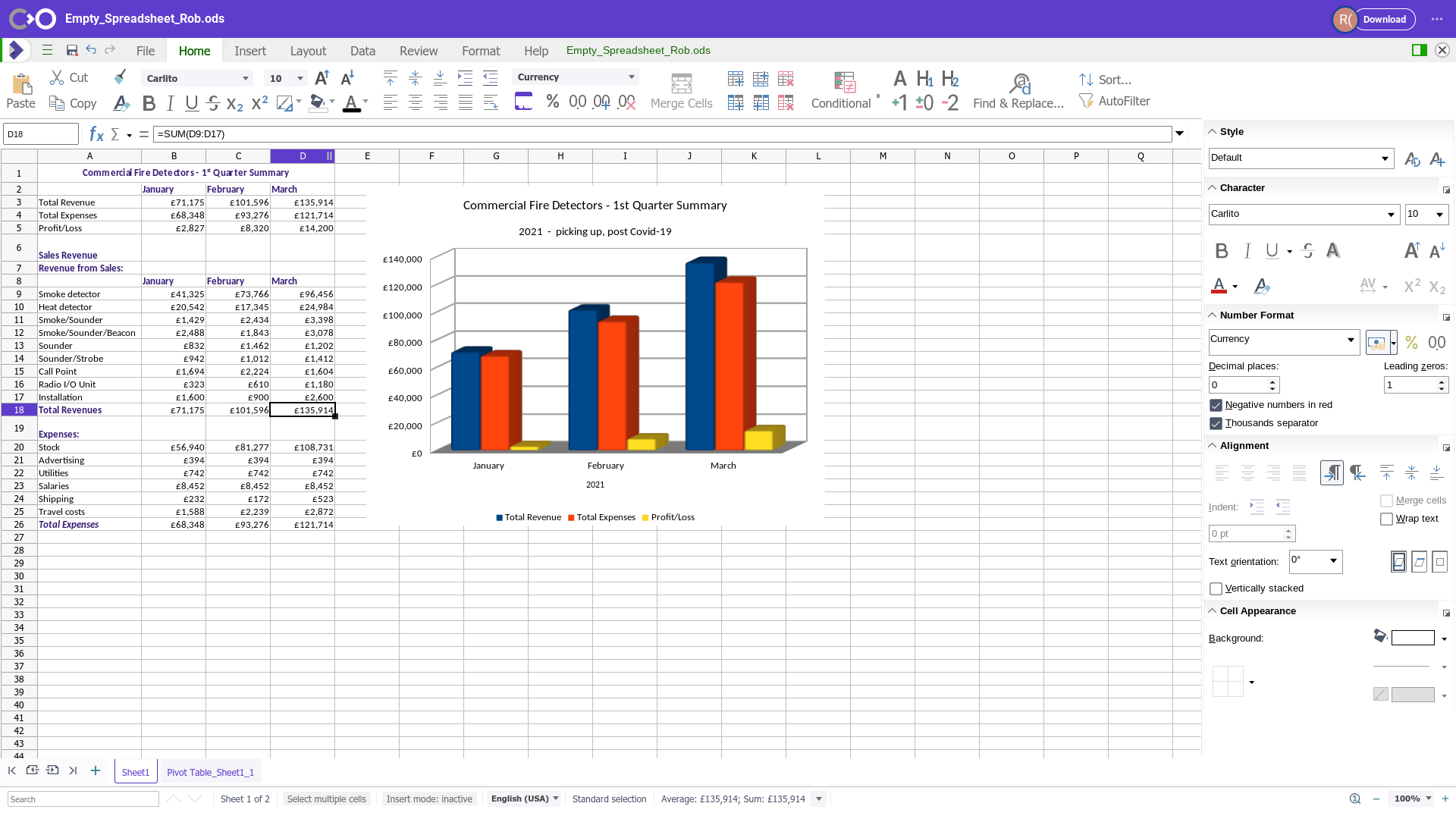
The most common way to deploy CODE is the official container. An example for running it behind a TLS-terminating reverse proxy, with Nextcloud at cloud.example.com:
docker run -d --name collabora --restart unless-stopped \
  -p 127.0.0.1:9980:9980 \
  -e "aliasgroup1=https://cloud.example.com:443" \
  -e "extra_params=--o:ssl.enable=false --o:ssl.termination=true" \
  collabora/codeCode language: JavaScript (javascript)
The aliasgroup1 variable defines which platform may use the document server; for more than one, add aliasgroup2, aliasgroup3 and so on. This is an important security control, because it stops other sites from using your server. The extra_params options tell the container not to handle TLS because the proxy does. In Nextcloud, install the Nextcloud Office app and enter the public URL of the Collabora server; for very small installs there is even a built-in CODE server available as a Nextcloud app, handy for testing but not recommended with many users.
ONLYOFFICE Docs: built around OOXML
ONLYOFFICE Docs, from Ascensio System, is an open-source document server licensed under AGPL v3, with commercial editions. Unlike Collabora, it renders documents in the browser with its own engine and uses OOXML as its internal working format, which usually yields very good compatibility with Microsoft Office documents. Its tabbed interface, modeled on the Office ribbon, eases the transition for users coming from Word or Excel.
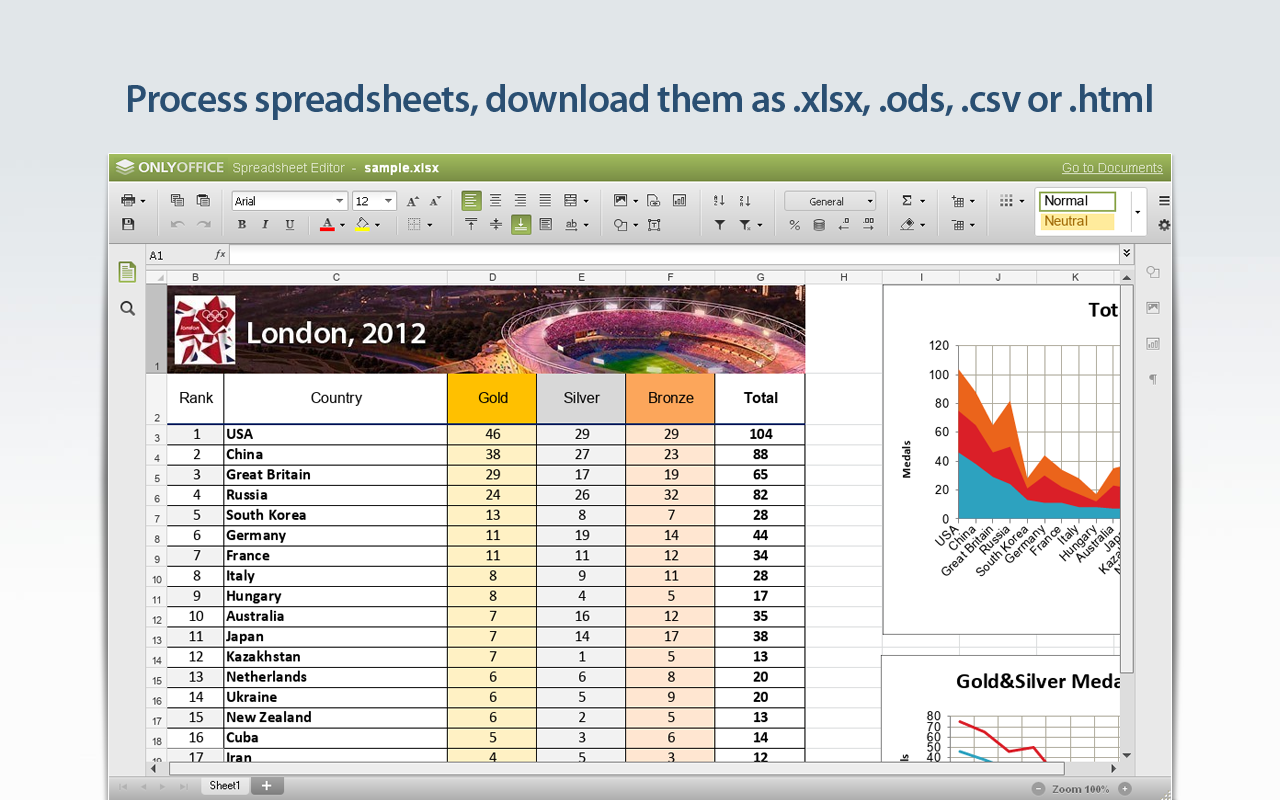
It also deploys from an official container. The most important variable is the JWT secret, which signs requests between the platform and the document server:
docker run -d --name onlyoffice --restart unless-stopped \
  -p 127.0.0.1:8080:80 \
  -e JWT_SECRET="replace-with-a-long-random-secret" \
  -v /srv/onlyoffice/logs:/var/log/onlyoffice \
  -v /srv/onlyoffice/data:/var/www/onlyoffice/Data \
  onlyoffice/documentserverCode language: JavaScript (javascript)
In Nextcloud, install the ONLYOFFICE connector and configure the server URL and the same secret. Read the terms of the free edition carefully: ONLYOFFICE caps simultaneous connections in its community version and reserves some features for paid editions.
Collabora or ONLYOFFICE: how to choose
| Criterion | Collabora Online | ONLYOFFICE Docs |
|---|---|---|
| Engine | LibreOffice on the server | Own engine, rendered in the browser |
| Working format | ODF and Office formats | OOXML internally |
| Office compatibility | Same as LibreOffice | Strongly focused on OOXML |
| Interface | Classic or tabbed | Tabs modeled on the Office ribbon |
| Server load | Higher, since rendering happens server-side | Lower per user, more work in the browser |
| Free version | CODE, for testing and light use | Community Edition, with a connection cap |
| License | MPL 2.0 | AGPL v3 plus commercial editions |
If the organization runs LibreOffice on desktops and wants a document to look the same on the desktop and in the browser, Collabora is the natural fit. If the priority is compatibility with Office documents and familiarity for users coming from Microsoft, ONLYOFFICE often wins. Either way, run a trial with the organization’s real documents before deciding.
Reverse proxy, sizing and security
Both document servers use WebSockets for real-time editing, and that is the most common configuration mistake: if the proxy does not pass them, the document opens but hangs on loading or disconnects. In Nginx, the location needs the connection-upgrade headers and long timeouts:
location / {
    proxy_pass http://127.0.0.1:9980;
    proxy_http_version 1.1;
    proxy_set_header Upgrade $http_upgrade;
    proxy_set_header Connection "upgrade";
    proxy_set_header Host $host;
    proxy_read_timeout 36000s;
}Code language: PHP (php)
On sizing, every open document consumes memory and CPU, especially with Collabora, which renders on the server. The number to size for is not total users but documents open at the same time at peak. Start with a modest machine, measure during a pilot and scale up; both products support multiple instances in larger environments.
The security baseline is short but non-negotiable:
- Restrict which platforms can use the document server (aliases in Collabora, JWT in ONLYOFFICE).
- Publish it only behind the TLS proxy and never expose the container port to the internet.
- Update images regularly: they parse files from users and third parties, which makes them a target.
- Install corporate and metric-compatible fonts inside the container, as covered in the first article.
- Watch the logs and set resource limits so one huge document cannot take the service down.
Day-to-day operations: updates, monitoring and continuity
Once running, a document server needs little maintenance, but not none. Updates are the main task: both Collabora and ONLYOFFICE ship releases with security fixes frequently, and the easiest approach is to pin the image tag in your Docker Compose file, test the new version in staging with a handful of real documents and then update production in a quiet window. Since the server holds no documents, replacing the container is quick; the only thing lost is the session of anyone editing at that moment, so give users a heads-up.
For monitoring, whatever you already use will do: check that the server’s discovery URL responds (in Collabora, /hosting/discovery), track container memory and CPU, and scan the logs for connection errors with the platform. An alert when sustained memory crosses a threshold lets you add resources before users notice slowness. It is also worth reviewing the number of simultaneously open documents periodically, because that is the figure that tells you when you need another instance.
For continuity, what matters is the file platform and its database, not the editor. If the document server goes down, users lose browser editing but keep their files and can download them and work in desktop LibreOffice. That natural redundancy between desktop and browser is one of the benefits of running both.
Choosing the file platform
The document server gets the attention, but the file platform is where users spend their day and where your data actually lives, so it deserves as much thought. Nextcloud is the most common choice in self-hosted setups because it bundles file sync, sharing, calendars, contacts and chat, and ships first-party integrations for both Collabora and ONLYOFFICE. ownCloud and Seafile are lighter alternatives focused on file sync, and both support external document servers too.
A few questions narrow the choice quickly. Does it authenticate against your existing directory, whether LDAP, Active Directory or an identity provider over SAML or OpenID Connect? Does it support the storage backends you already run, such as local disks, NFS or S3-compatible object storage? How are desktop and mobile sync clients deployed and updated? And how does it handle external sharing, since sharing links with partners is often what users miss most when leaving a commercial cloud. Answering these before choosing the editor avoids rebuilding the platform later.
Plan the move of existing files as a project of its own. Old network shares tend to carry years of duplicated folders, broken permissions and files nobody owns. Cleaning them up before importing them into the new platform, and mapping old share permissions to groups in the directory, saves far more time than it costs.
Document conversion as a service
Many internal applications need to convert documents: generating PDF invoices from templates, previewing attachments, normalizing files before archiving them or extracting text for indexing. Headless LibreOffice is the most widely used tool for this, and there are several ways to integrate it.
The most direct is the command line covered in the first article, soffice --headless --convert-to. It works, but launching LibreOffice for every file is slow. For larger volumes there is unoserver, a Python project that keeps a LibreOffice instance listening and accepts conversion requests:
pip install unoserver
unoserver &
unoconvert input.docx output.pdfCode language: CSS (css)
The third option is Gotenberg, a container that exposes an HTTP API for converting documents with LibreOffice and HTML pages with Chromium. It fits well in microservice architectures:
docker run -d --name gotenberg -p 127.0.0.1:3000:3000 gotenberg/gotenberg:8

curl --form [email protected] \
  http://127.0.0.1:3000/forms/libreoffice/convert -o contract.pdfCode language: JavaScript (javascript)
For broader file conversion with a web interface there are self-hosted tools such as ConvertX. Whichever tool you choose, the same rules apply: isolate the service, because it processes untrusted files; cap file size and conversion time; install the fonts you need; and never expose it directly to the internet.
A reference architecture
For a mid-sized organization, a reasonable layout looks like this: Nextcloud as the file platform, authenticating against the corporate directory; Collabora Online or ONLYOFFICE on a separate machine or container, published only through the proxy; LibreOffice on desktops for heavy offline work; and an internal conversion service for business applications. Every piece gets the same fonts, and backups focus on Nextcloud’s storage and database, which is where the documents actually live.
You do not have to adopt everything at once. Many organizations start by offering browser editing to one department, measure load and adoption, and expand from there. The third and final article tackles the hardest part: migrating from Microsoft Office, with the inventory of documents and macros, the choice of file format and what real-world projects teach.
Frequently asked questions
What is the difference between Collabora Online and ONLYOFFICE?
Collabora runs LibreOffice on the server, with the same formatting fidelity; ONLYOFFICE uses its own engine in the browser and works internally with OOXML, with a strong focus on Office compatibility.
Where are documents stored?
On the file platform, such as Nextcloud. The document server only opens and edits them, so backups are done on the platform.
Why does the document hang on loading in the browser?
Usually the reverse proxy is not passing WebSockets. Add the Upgrade and Connection headers and raise the timeouts.
How do I convert documents to PDF from an application?
With headless LibreOffice, with unoserver for higher volumes or with Gotenberg, which provides an HTTP API in a container.
Sources: