
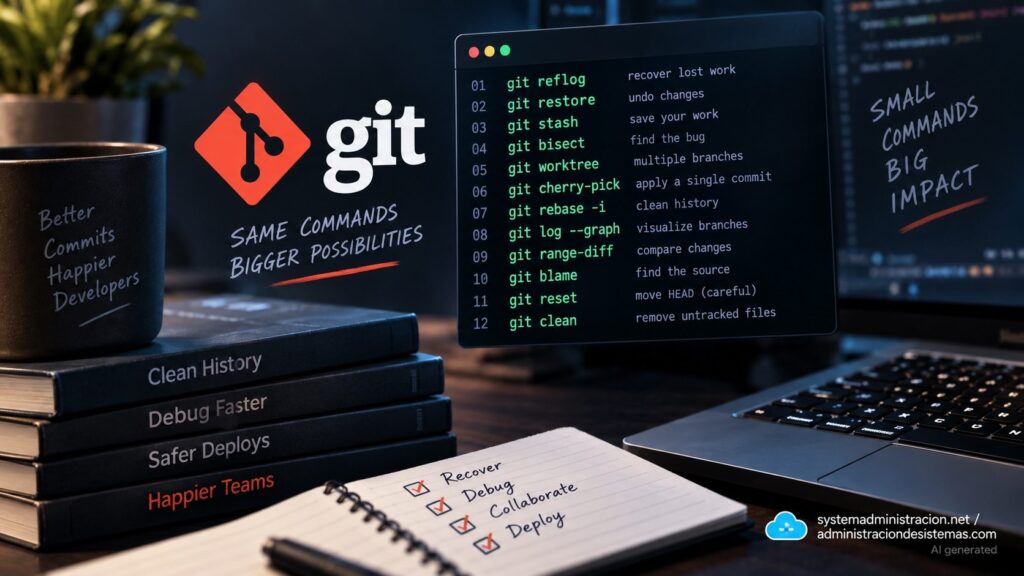
Git starts out as add, commit, pull, and push, but the real problems begin when a commit disappears, you need to find the exact change that introduced a bug, you want to keep two branches open at the same time, or you need to clean up history before sharing it. These 12 Git commands, ranked by practical importance, cover many of those situations and make working with repositories considerably safer.
The key takeaways from these 12 Git commands in 20 seconds
git reflogcan locate commits that seem lost after a reset or rebase.git restorelets you recover files without moving the branch.git stash,bisect, andworktreesolve common development and debugging problems.cherry-pickandrebasehelp manage changes across branches.resetandcleanare extremely useful, but they also require the most caution.
The ranking is not based on which command is technically the most sophisticated. It prioritizes how useful each one can be when something goes wrong or when everyday development starts becoming more complicated.
Some are genuine lifesavers. Others save you from wasting twenty minutes constantly switching branches. And a few can destroy work if you use them without understanding exactly what they modify.
The four commands that can save a day’s work
1. git reflog: find commits that seemed lost
If there were one command worth learning beyond the basic Git workflow, this would probably be it.
Suppose a branch contains several commits:
9f7c21a Add payment validation
8a6e3b1 Implement PaymentService
3c7d812 Create PaymentController
Then someone runs:
git reset --hard HEAD~3Those commits disappear from the branch’s normal history. That does not necessarily mean they have immediately disappeared from Git’s object database.
The reflog records recent movements of references such as HEAD:
git reflogIt might show something like:
45bc120 HEAD@{0}: reset: moving to HEAD~3
9f7c21a HEAD@{1}: commit: Add payment validation
8a6e3b1 HEAD@{2}: commit: Implement PaymentServiceCode language: CSS (css)
A cautious way to recover the previous state is to create a branch first:
git switch -c recovery 9f7c21aCode language: JavaScript (javascript)Or, if you know exactly what you are doing:
git reset --hard 9f7c21areflog is not a permanent backup. Its entries can expire, and unreachable objects may eventually be removed by Git’s maintenance mechanisms. But after a recent accident, it is often the first place worth checking.
2. git restore: undo file changes without moving history
For many years, git checkout did too many different things: switching branches, restoring files, and working with specific commits.
git restore provides a more explicit operation for recovering content.
If a file has been modified and you want to return to the version stored in the index:
git restore UserService.javaCode language: CSS (css)To restore all modified files in the current directory:
git restore .If a file was accidentally added to the staging area:
git restore --staged config.ymlCode language: CSS (css)And to recover a file from another commit:
git restore --source=HEAD~2 app/config.pyThere is an important difference to remember: restoring a file can destroy unsaved local modifications.
restore is often more precise than using reset to solve a problem that only affects one or several files.
3. git stash: park unfinished work without creating junk commits
Production incidents tend to arrive at the worst possible moment.
You might have unfinished changes such as:
modified: OrderService.java
modified: PaymentController.java
new file: PaymentValidator.javaCode language: CSS (css)
Instead of creating a commit called WIP, you can temporarily store them:
git stash push -m "payment feature"Code language: JavaScript (javascript)Then:
git switch main
git switch -c hotfix/login-errorCode language: JavaScript (javascript)
When the incident is over:
git switch feature-payment
git stash popCode language: JavaScript (javascript)
To see existing stashes:
git stash listCode language: PHP (php)And to recover a specific one without removing it from the stash list:
git stash apply stash@{1}Code language: CSS (css)One detail that often causes surprises is that new untracked files are not always included in a normal stash. To save those as well:
git stash -u4. git bisect: find a bug with binary search
Some bugs appear after weeks of changes, and nobody knows which commit introduced them.
Testing a hundred commits one by one would be a waste of time.
Git can perform a binary search:
git bisect start
git bisect bad
git bisect good 3a82b91
Git checks out a commit roughly halfway between the known good and bad points.
After testing it:
git bisect goodor:
git bisect badEach answer cuts the remaining search space roughly in half.
When you are finished:
git bisect resetThe feature becomes even more powerful when you have a test capable of automatically determining whether each revision is good or bad:
git bisect run ./test-login.shAt that point, Git stops being just a version-control system and becomes a debugging tool.
The commands that make branches much easier to manage
5. git worktree: work on several branches at the same time
Constantly switching branches works until an urgent incident appears while you have twenty modified files.
worktree lets you maintain multiple working directories attached to the same repository:
git worktree add ../payment-hotfix hotfix/payment-errorYou end up with something like:
project/
payment-hotfix/
The first directory can remain on a feature branch while the second works on the hotfix.
To see them:
git worktree listCode language: PHP (php)When one is no longer needed:
git worktree remove ../payment-hotfixFor developers maintaining several versions or handling incidents while working on long-running features, this can eliminate much of the repetitive stash → switch → unstash workflow.
6. git cherry-pick: bring over only the commit you need
A bug has already been fixed in develop, but production is running from main.
The commit is:
a72c8e1 Fix null pointer in PaymentServiceCode language: JavaScript (javascript)You do not want to merge all of develop.
You can apply only that change:
git switch main
git cherry-pick a72c8e1Code language: JavaScript (javascript)
Git creates a new commit on the current branch containing the changes introduced by the original commit.
This is especially useful for hotfixes and maintenance branches.
There is a trade-off: excessive use of cherry-pick can create equivalent commits with different identifiers across multiple branches, potentially making future merges and rebases harder to understand.
7. git rebase -i: clean up a branch before sharing it
A feature can easily end up with a history like this:
fix validation
fix validation again
oops
tests
typo
really final fixCode language: PHP (php)
Before merging it, reorganizing the commits may make sense:
git rebase -i HEAD~6Git opens a list similar to:
pick a12bc34 Add payment API
pick b23cd45 Fix validation
pick c34de56 Add tests
Commits can be marked with actions such as:
pick
reword
edit
squash
fixup
drop
For example:
pick a12bc34 Add payment API
fixup b23cd45 Fix validation
fixup c34de56 Fix tests
The result can be a much cleaner history.
But rebase rewrites commits.
It should not be used casually on a public branch that other developers have already based their work on. Git’s own documentation warns about the problems caused by rewriting branches used by other people.
8. git log --graph: finally understand what happened to your branches
A normal git log can become difficult to read in a repository with many branches and merges.
This variation is much more useful:
git log --oneline --graph --decorate --allExample:
*   c843bd1 (HEAD -> main) Merge feature/payment
|\
| * 7ae31f0 Add payment validation
| * 613a8aa Create PaymentService
|/
* 4b19d83 Previous release
--oneline reduces each commit to a single line.
--graph represents branches and merges.
--decorate shows branches and tags.
--all includes other references in the graph.
It changes absolutely nothing. It simply helps you understand what you are looking at before you start modifying it.
Four tools for investigating, comparing, and cleaning up
9. git range-diff: compare two versions of the same commit series
This is one of the lesser-known commands on the list and is particularly useful after changing a branch with rebase.
Suppose you submitted a series of commits for review and later rebased or reworked it onto a new base.
A normal diff compares files.
range-diff compares series of commits:
git range-diff main..feature-v1 main..feature-v2Code language: CSS (css)This helps answer a very specific question:
What changed between the previous version of this commit series and the new one?
It is useful for large code reviews, rebased branches, and patch series where looking only at the final repository state can hide important changes.
10. git blame: find the commit that introduced a line
The command’s name makes it sound like a tool for discovering who is to blame, but its useful purpose is different: finding the historical context of a particular line.
git blame UserService.javaCode language: CSS (css)It might return:
3a7b1c2 (Rahul 2026-03-10) public void login()
a1b8d91 (Anita 2026-04-02) validateCredentials();
c8f7e20 (David 2026-04-15) generateJwtToken();Code language: JavaScript (javascript)
The really useful part is the commit hash.
You can then inspect it:
git show c8f7e20This reveals what other files changed, the commit message, and often the problem the developer was trying to solve.
blame should be used to find context, not culprits.
11. git reset: move HEAD, the index, or both
reset is extremely useful precisely because it can modify several parts of Git’s state.
To remove the latest commit while keeping its changes staged:
git reset --soft HEAD~1To keep the changes in your files but remove them from the staging area:
git reset --mixed HEAD~1--mixed is the default behavior:
git reset HEAD~1And then there is the dangerous one:
git reset --hard HEAD~1--hard makes HEAD, the index, and the working tree match the selected commit. Unsaved local modifications can be lost.
There is a useful distinction between three commands that are often confused:
| Command | Main purpose |
|---|---|
git restore | Restore files or index content |
git reset | Move a reference and/or modify the index and files |
git revert | Create a new commit that reverses another commit |
For changes that have already been published and shared, it is usually safer to consider git revert before rewriting history with reset.
12. git clean: delete what Git is not tracking
git clean can leave a repository perfectly clean.
It can also delete files that have no copy anywhere inside Git.
That is why the most important command to run first is:
git clean -n-n performs a dry run and shows what would be removed.
Then:
git clean -fdeletes untracked files.
To include directories:
git clean -fdAnd there is an even more aggressive option:
git clean -fdx-x also includes files ignored through .gitignore, which can remove installed dependencies, local builds, configuration files, and other generated directories.
There is an important difference between this and losing a commit. A missing commit may still appear in reflog. A file that was never added to the repository and gets deleted with git clean may not exist in any recoverable Git object.
That is why git clean -n should almost become muscle memory before running the real deletion.
Quick reference: which Git command should you use?
| Priority | Command | What it is for | Risk |
|---|---|---|---|
| 1 | git reflog | Recover references and locate lost work | Low |
| 2 | git restore | Restore files | Medium |
| 3 | git stash | Temporarily park changes | Low |
| 4 | git bisect | Find the commit that introduced a bug | Low |
| 5 | git worktree | Keep multiple branches open | Low |
| 6 | git cherry-pick | Apply one specific commit to another branch | Medium |
| 7 | git rebase -i | Reorganize and clean up commits | High on shared branches |
| 8 | git log --graph | Visualize repository history | None |
| 9 | git range-diff | Compare two commit series | None |
| 10 | git blame | Find the origin of specific lines | None |
| 11 | git reset | Move HEAD and modify the index or files | High |
| 12 | git clean | Delete untracked files | Very high |
The table also explains why clean and reset appear near the bottom despite being extremely useful. They are not less important. They are the commands most worth understanding before running them without safety options.
The difference between someone who “knows Git” and someone who can handle Git when things become complicated is not about memorizing dozens of flags.
It is about understanding which layer is being modified.
Git maintains, among other things, its object database, references such as HEAD, the index or staging area, and the working tree. Many behaviors that initially seem mysterious become much easier to understand once it is clear which of those parts each command touches.
restore primarily deals with files.
reset can move the branch.
reflog tells you where references used to point.
bisect uses repository history as a debugging mechanism.
worktree lets you expose multiple branches from the same repository in separate directories.
Once those differences are understood, Git stops feeling like a collection of magic spells and becomes a much more predictable tool.
Frequently asked questions
What is the most important Git command for recovering lost work?
git reflog is usually the first place to look when a commit disappears after a reset, rebase, or reference change. It is not a replacement for backups, and reflog entries are not retained indefinitely.
What is the difference between git restore and git reset?
git restore is mainly designed to restore files in the working tree or index. git reset can also move the current reference and change the state of a branch.
Which Git commands can cause data loss?
git reset --hard, git clean -f, and some git restore operations can remove local modifications. git rebase can also create problems on shared branches because it rewrites commits.
Which Git command finds the commit that introduced a bug?
git bisect performs a binary search between a known good commit and a known bad commit. It can also run tests automatically with git bisect run.